
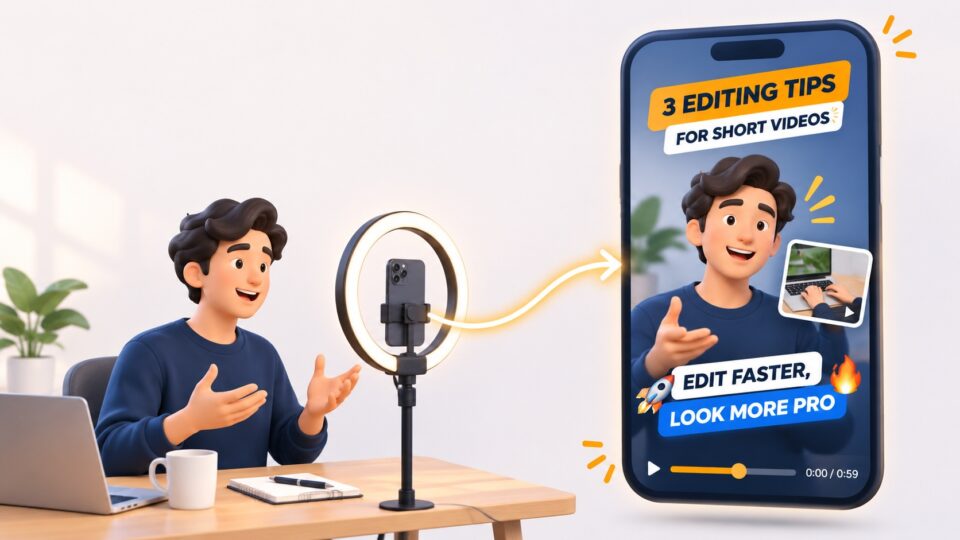
Cutroom is an AI video editor for one job. You film yourself talking, upload that one clip, and get back a finished vertical video with a headline at the top, captions, b-roll over the parts that need showing, and the pauses tightened if you asked for that. It runs in the browser. There is no timeline, no layers and no effects browser. You steer the edit with a few choices before the upload and a few controls on the transcript afterwards.
This guide goes through it in order, from signing up to posting on TikTok, Instagram Reels or YouTube Shorts. Where Cutroom works differently from a typical video editor, I say so.
Quick answer: how to use Cutroom
Sign up on the Cutroom website with an email link or Google, click New project, pick one of four edit styles (Straight cut, Punch, Flow or Native), and upload one vertical talking-to-camera clip of up to three minutes. The edit comes back in about a minute. Adjust the hook, captions, emoji, b-roll and music from the transcript, then click Export video to download a 9:16 MP4 you can post to TikTok, Instagram Reels and YouTube Shorts. An edit costs 100 credits and export costs 20 credits per minute of finished video.
What Cutroom Does, and What It Doesn’t
- In: one clip of one person talking to camera, up to 3 minutes long.
- Out: one finished 9:16 MP4, ready to post.
- Done for you: the cut, the opening headline, captions in the style you pick, stock b-roll placed over the words it matches, and the transitions between shots.
- Yours to change: the headline, the caption style, where each b-roll clip sits and how it comes in, emoji on a word, music, and any misheard word in the transcript.
- Not there: a timeline, editing several clips together, a second speaker, horizontal output, or deleting lines from your take. More on that below.
Cutroom at a glance
| Spec | Detail |
|---|---|
| Input | One video of one person talking to camera (no audio-only upload) |
| Maximum length | 3 minutes (hard limit) |
| Accepted files | MP4, MOV or WebM, up to 1 GB |
| Output | 9:16 vertical MP4 with captions, headline and b-roll in the picture |
| Edit turnaround | About a minute |
| Where it runs | In the browser |
| Editing model | Transcript-based, with no timeline |
| Free option | First video free: 600 credits, no card, within 7 days of signing up |
Getting Started: Sign Up and Make Your First Video Free
Go to the Cutroom website and click Try for free. You land on the sign-in page. There are no passwords: type your email and Cutroom emails you a sign-in link, or click Continue with Google. That is the whole sign-up.
Your first video is free. You get 600 credits, no card is asked for, and you have 7 days from signing up to make it. The free export carries a Cutroom mark across the middle of the picture. Lite, the first paid plan at $19.99 a month, removes it. Pricing is at the end.
Once you're in, you see your Projects page. Click New project to start.
How to Use Cutroom: Step-by-Step
Step 1: Film one take, up to three minutes
Cutroom takes a video of you talking. It doesn't record for you, and there is no audio-only or voice memo upload; the upload screen takes video only. So the first step happens on your phone.
A few things that make the edit better:
- Film vertical. The upload screen says portrait 9:16 works best, and the finished video is 9:16.
- Talk about one thing, in one go. You don't need to pause for cuts; the edit works on the words you say.
- Keep it under three minutes. Three minutes is a hard limit on the upload.
- Re-film fluffed sentences. If you fluff a sentence, stop and film the take again. Cutroom doesn't cut out restarts or whole sentences.
The upload box takes MP4, MOV or WebM files up to 1 GB.
Step 2: Choose the AI edit style and upload your clip
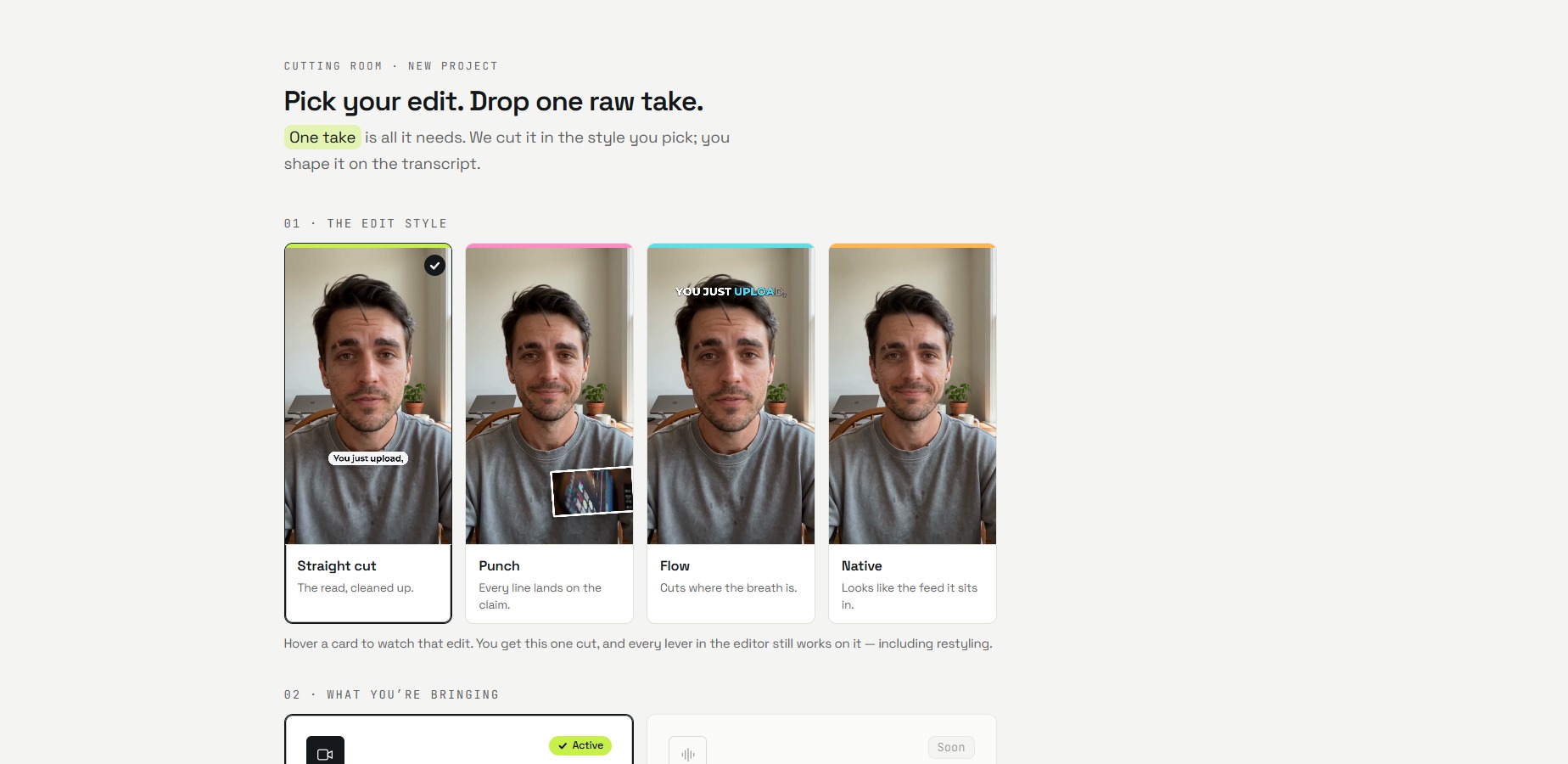
The New project screen has four numbered parts. The first is the edit style, the biggest decision you make, because it is fixed once you upload:
- Straight cut: your read, as you said it. Nothing is shortened and no sound effects are added.
- Punch: every line lands on the claim. Pauses are shortened and the ums come out.
- Flow: cuts where the breath is, and your take stays as you said it.
- Native: looks like the feed it sits in. Like Punch, it shortens the pauses and takes out the ums.
Cutroom edit styles compared
| Edit style | What it does | Shortens pauses and removes ums? | Adds sound effects? |
|---|---|---|---|
| Straight cut | Your read, as you said it | No | No |
| Punch | Every line lands on the claim | Yes | Yes, where the picture changes |
| Flow | Cuts where the breath is; your take stays as you said it | No | Yes, where the picture changes |
| Native | Looks like the feed it sits in | Yes | Yes, where the picture changes |
Two things worth knowing about the pause removal. Punch and Native find the pauses and ums in the transcript, from the gaps between words, not from the sound, so not every pause you hear is shortened. And Flow, Punch and Native add short sound effects where the picture changes; Straight cut adds none, and they can't be switched off in the editor.
Below the styles you confirm what you're uploading (a spokesperson video), pick the spoken language, and drop your clip in. Click Start. The edit costs 100 credits, which covers the transcription, the director pass that decides the cut, and the b-roll search; the export is priced separately, at 20 credits per minute of finished video. The edit comes back in about a minute.
Step 3: Use transcript-based editing (the words are the controls)
This is where Cutroom differs most from other editors. It has no timeline. When the edit opens you see three columns: the transcript of what you said on the left, a row of tabs in the middle (Hook, Captions, Emoji, B-roll, Cards, Music, Overview), and a phone-shaped preview on the right. Everything you change is saved automatically and plays in the preview.
You work on the words:
- Select a phrase and a b-roll clip lands over exactly those words.
- Select words and give just those their own caption style, colour and type.
- Tap a word to put an emoji on it.
- Fix a misheard word, and the caption follows.
Words that Punch or Native took out are struck through in the transcript, and tapping one tells you why it went. If you want them back, choose Slow the pace to normal and every pause and every um comes back. The pace control only goes slower, never faster.
What you can't do on the transcript: there is no way to delete a line or trim the start or end of a take, and you can't change the edit style, the zooms or the sound effects after the upload. If a line has to go, the fix is a new take. That's the trade: the editor is small enough to learn in a minute, and the cut is made for you rather than by you.
Step 4: Set the hook, the headline that opens the video
The Hook tab controls the headline at the top of the frame in the first seconds. Cutroom drafts a few from your transcript. Pick one, or type your own. There are 15 hook themes to choose from, you set how high it sits, and you can hold it on screen for the whole video rather than only the opening. In the next screenshot, the hook is the "YOU'RE TALKING TO AI RIGHT NOW AND DIDN'T NOTICE" line at the top of the preview.
Step 5: Style the automatic captions
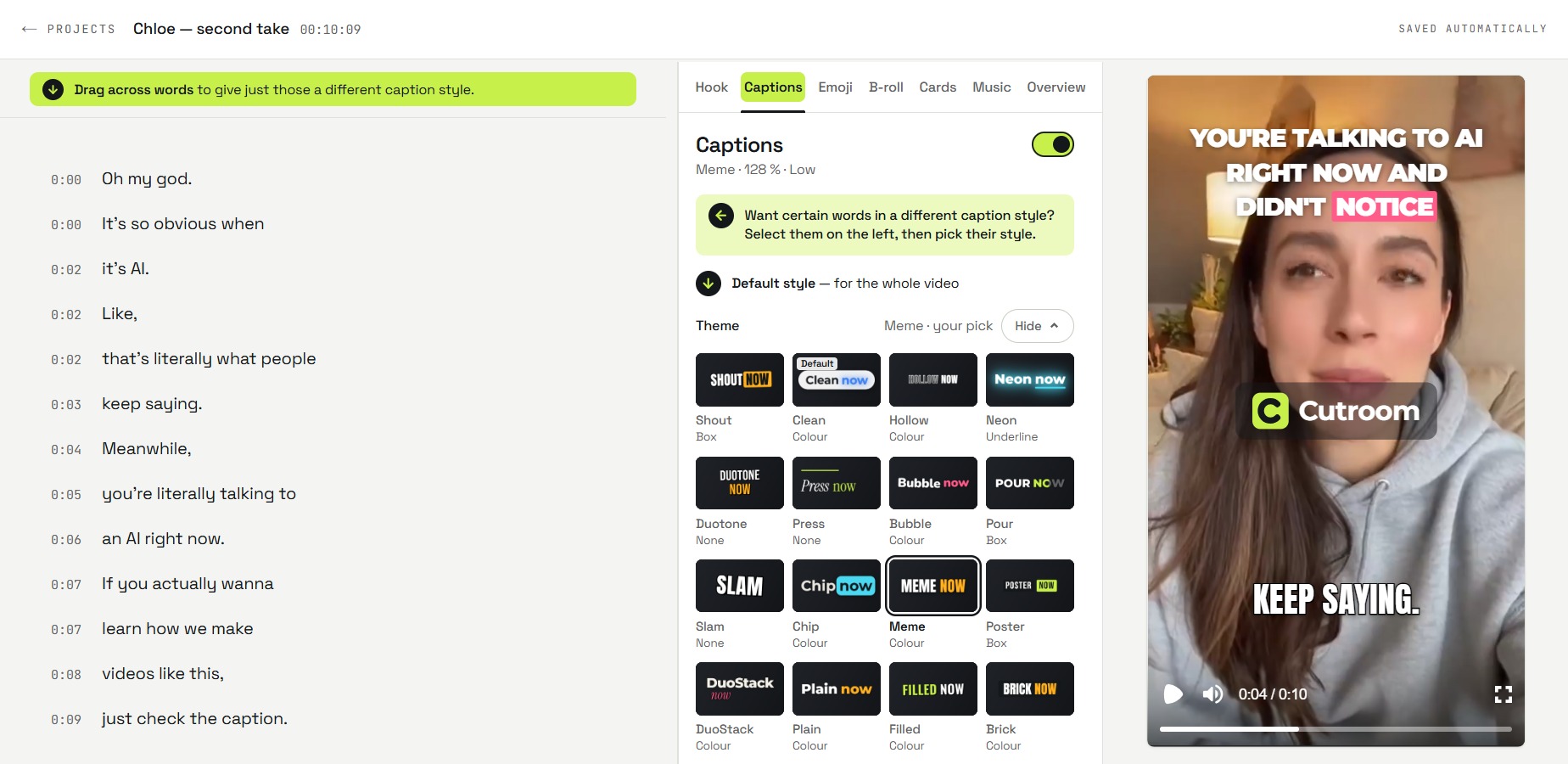
Every video comes back with captions, which matters because a lot of people watch with the sound off. Captions come in short lines timed to your speech, and most themes pop one word per line with a box, a colour or an underline. Which word pops is decided for you by the theme.
In the Captions tab you can:
- Pick one of 40 caption themes from the grid.
- Pick the font (seven bundled faces; each theme offers its own plus up to two alternates) and the colour, from 16 named colours.
- Set the size with a slider and move the captions up or down.
- Select words on the transcript and give just those their own style, colour and type.
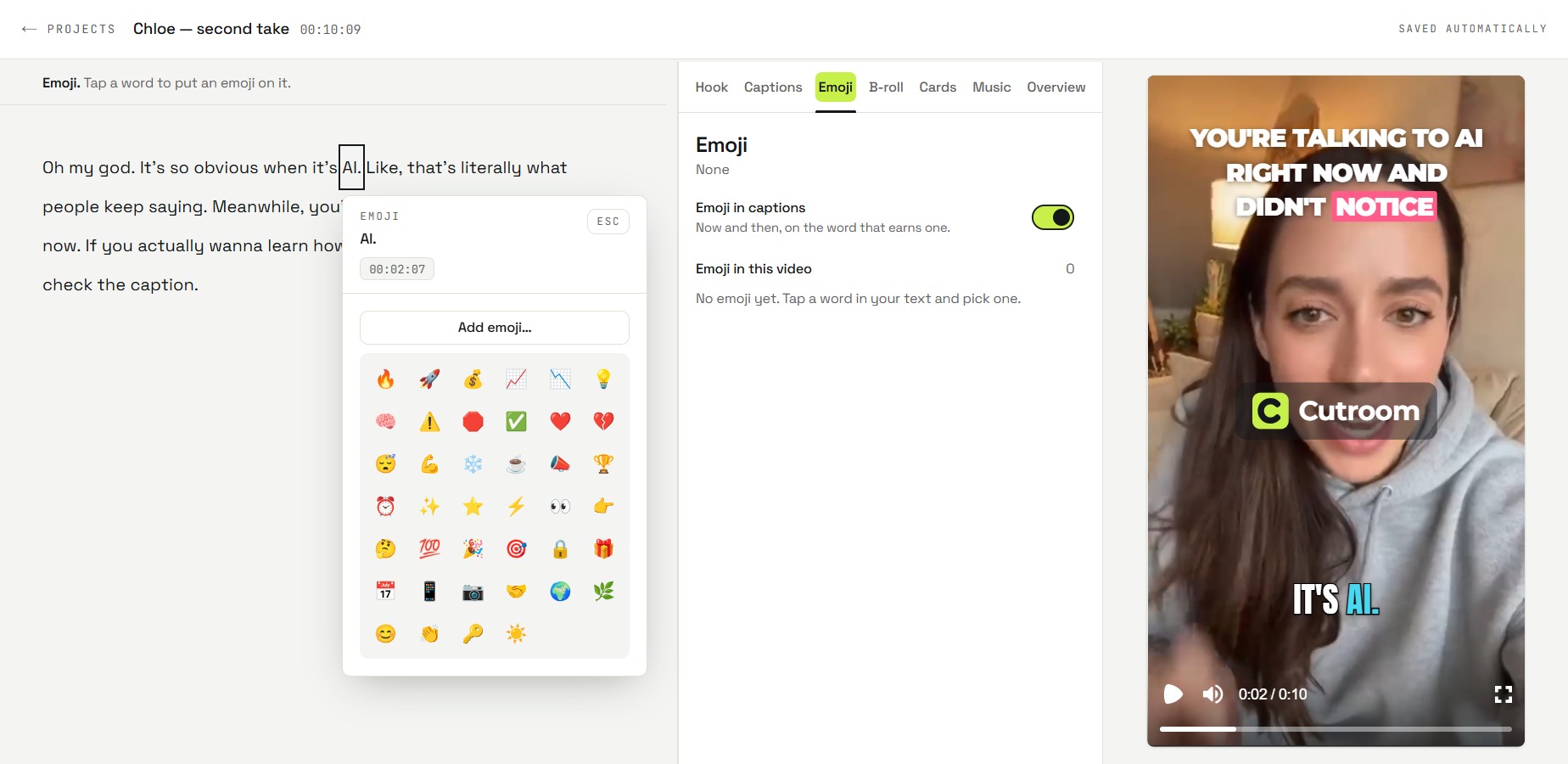
Emoji have a tab of their own. The louder caption themes (14 of the 40) draw a small emoji beside the word it belongs to, now and then. You can also tap any word and pick one yourself. If you'd rather have none, one switch turns emoji off for the whole video, and it stays off when you change theme.
Step 6: Adjust b-roll, transitions and music
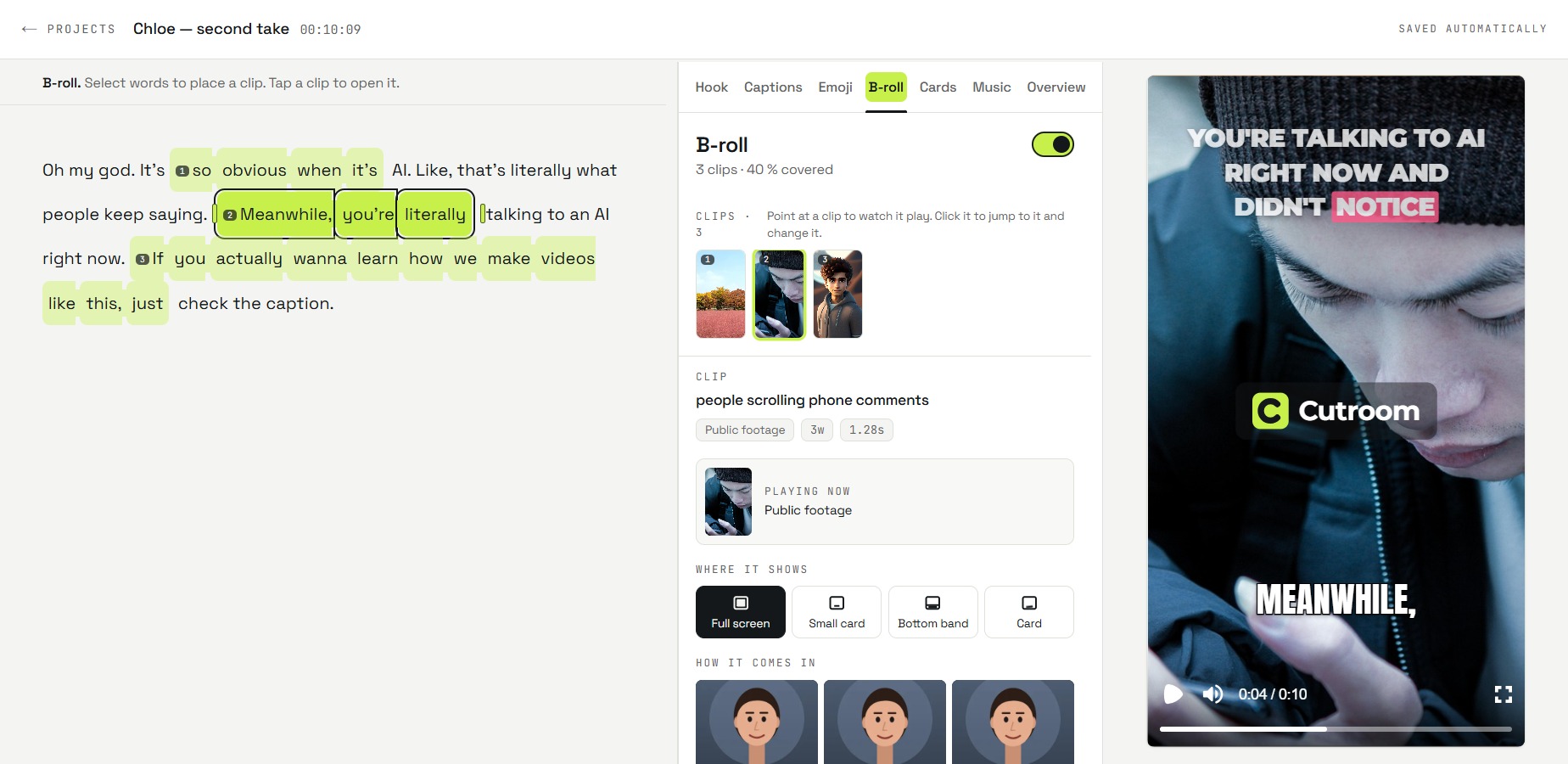
B-roll is placed for you when the edit comes back: short stock clips over the words that need showing, with you back on screen between them. The transcript shows which words carry a clip. To change it:
- Select other words and a clip lands over exactly those.
- Tap a clip to swap it, or search millions of free clips for a better one.
- Choose where it shows: full screen, on a small card under your chin, in a bottom band, or on a tilted card.
- Choose how it comes in: cut, whip, punch, glitch or sweep.
Music is off by default; the edit comes back with your voice only. The Music tab turns it on, picks the track and sets how loud it sits under you. Generated music tracks are part of the Basic plan and up.
Step 7: Export and post to TikTok, Instagram Reels and YouTube Shorts
Click Export video. The confirm screen shows the price before you commit: 20 credits per minute of finished video, so a one-minute video is 20 credits on top of the 100 for the edit. Exporting the same cut again, unchanged, is free. Change anything first and it's a new export.
What you get is a 9:16 MP4 with the captions, headline and b-roll in the picture. When it's done, you download it from your Projects page, where each project has Watch, Download and Edit. Then upload it to TikTok, Instagram Reels and YouTube Shorts as you would any video. Cutroom doesn't post for you, and the same file works on all three because it's already vertical.
The free video's export carries the Cutroom mark across the middle, and it's yours to post.
Cutroom Pricing and Credits Explained
| Plan | Price | Credits | What you get |
|---|---|---|---|
| Free | $0 | 600 credits, once | Your first video, within 7 days of signing up. No card. The export carries a Cutroom mark across the middle. |
| Lite | $19.99 a month | 1,250 a month | Nothing on the picture. About 10 finished videos a month if each is around a minute. |
| Basic | $39.99 a month | 2,500 a month | Everything in Lite plus avatars and generated music. About 20 videos a month. |
| Premium | $79.99 a month | 5,000 a month | Twice the credits of Basic. |
How Cutroom credits work
Credits are simple: an edit is 100 credits, an export is 20 credits per minute of finished video, and a generated music track starts at 50 credits. If you run out mid-month, a top-up is $39.99 for 2,500 credits.
| Action | Credit cost |
|---|---|
| Edit (transcription, director pass and b-roll search) | 100 credits |
| Export | 20 credits per minute of finished video |
| Re-export of the same, unchanged cut | Free |
| Generated music track | From 50 credits |
| Example: one one-minute video | 100 + 20 = 120 credits |
| Top-up | $39.99 for 2,500 credits |
To see the whole thing happen on one clip, there is a full Cutroom tutorial walkthrough.
Is Cutroom Right for You?
Cutroom is built for people who talk to a camera: one clip in, a finished vertical video out. It fits well if you:
- Record single-speaker, talking-to-camera videos of up to three minutes.
- Want captions, a headline hook and b-roll done for you rather than built by hand on a timeline.
- Post vertical video to TikTok, Instagram Reels or YouTube Shorts.
It is not the right tool if you need to edit several clips together, feature a second speaker, export horizontal video, or delete lines from your take. None of those are there.
Cutroom FAQs
What is Cutroom?
Cutroom is a browser-based AI video editor for one job: you upload one clip of yourself talking to camera, and it returns a finished 9:16 vertical video with a headline, captions, b-roll and transitions, plus tightened pauses if you chose an edit style that does that.
Is Cutroom free?
Your first video is free. You get 600 credits, no card is asked for, and you have 7 days from signing up to make it. The free export carries a Cutroom mark across the middle of the picture; the Lite plan at $19.99 a month removes it.
How long can a Cutroom video be?
Up to three minutes. That is a hard limit on the upload. The upload box takes MP4, MOV or WebM files up to 1 GB.
How many credits does one Cutroom video cost?
An edit costs 100 credits and export costs 20 credits per minute of finished video, so a one-minute video costs 120 credits in total. Exporting the same, unchanged cut again is free.
Can I change the edit style after uploading?
No. The edit style is fixed once you upload. You also can't change the zooms or the sound effects after the upload.
Does Cutroom remove ums and pauses?
The Punch and Native styles shorten pauses and take out the ums. They find them in the transcript, from the gaps between words, not from the sound, so not every pause you hear is shortened. Choosing Slow the pace to normal brings every pause and um back.
Can I delete a sentence or trim my clip in Cutroom?
No. There is no way to delete a line or trim the start or end of a take, and Cutroom doesn't cut out restarts or whole sentences. If a line has to go, the fix is a new take.
Does Cutroom post directly to TikTok, Instagram or YouTube?
No. You download the finished 9:16 MP4 from your Projects page and upload it to TikTok, Instagram Reels and YouTube Shorts as you would any video. The same file works on all three because it's already vertical.
Can I add background music?
Yes. Music is off by default. The Music tab turns it on, picks the track and sets how loud it sits under your voice. Generated music tracks are part of the Basic plan and up, starting at 50 credits a track.
Does Cutroom support horizontal video or multiple speakers?
No. Cutroom outputs 9:16 vertical video only, works with one person talking to camera, and doesn't edit several clips together.
Final Thoughts
Cutroom trades control for speed. You make the big decision, the edit style, before you upload, and from then on you adjust the hook, captions, emoji, b-roll and music by working on the words rather than on a timeline. The cut itself is made for you. If you talk to a camera and want a finished vertical video for TikTok, Instagram Reels or YouTube Shorts in a few minutes, the free first video is the easiest way to see whether that trade suits you. If you need multi-clip edits, a second speaker or horizontal output, look at a traditional editor instead.
About the author
Ray, support and guides at Cutroom. Ray answers the support desk at Cutroom and writes its how-to guides, so most of the above comes from questions people actually ask. Cutroom is an AI video editor for people who talk to a camera: one clip in, a finished vertical video out. More walkthroughs are on the Cutroom videos page.