
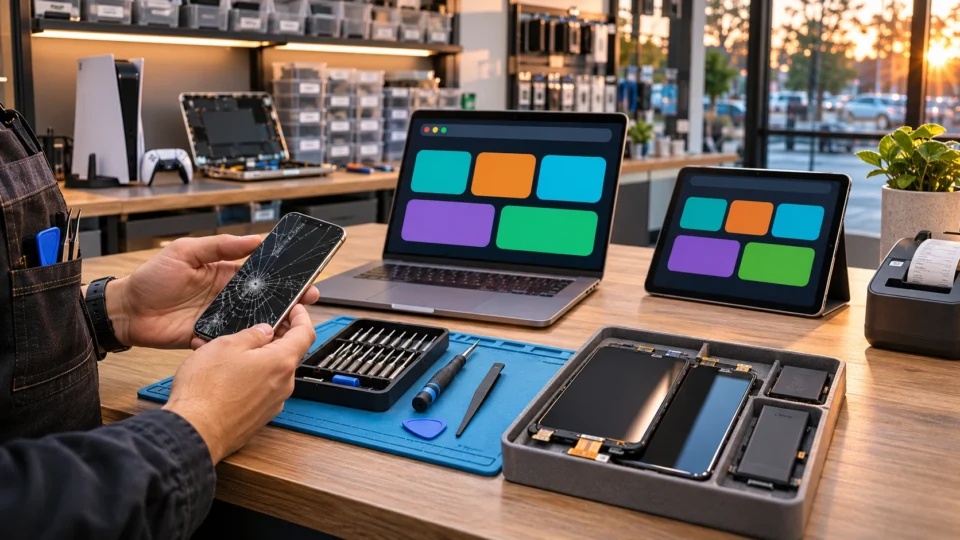
Repair shop software should make the counter faster, not add another system to babysit. This guide walks through how RepairAmigo is set up and how a shop can use it for intake, repairs, inventory, sales, and everyday records. It is based on what RepairAmigo publishes on its official website and pricing page, together with the product screens shown below.
Introduction to RepairAmigo
RepairAmigo is free repair shop software for cell phone, computer, and console repair. It was built inside a busy repair shop, and it is meant to cover the day from drop-off to pick-up: every price, every part, and every dollar, in one place, running on your own network.
The public site describes more than 12 modules in one system, three clicks from intake to a printed receipt, parts deducted automatically as you repair, and real-time text updates for customers. It also notes 50,000+ real-life repair tickets processed in 14 years and counting, desktop and mobile use, and that it is made in Texas.
RepairAmigo runs as a virtual machine on a computer in your shop. You open it in a browser on computers, tablets, or phones on that local network. Your repair, customer, and inventory records stay on your own machine. There is no subscription and no credit card required to use the software.
The RepairAmigo team puts the reason for the product this way: “We built RepairAmigo because nothing on the market fit how a real repair shop works. Every feature exists because we needed it at our own counter.”
Point of Sale (POS) Management
RepairAmigo includes reports and a POS side for the counter, not only repair tickets.
From the published feature list, shops can:
- Ring up a cash sale for accessories and walk-ins, without opening a repair ticket.
- Keep a devices for sale
- Use referral codes.
- Run daily and period reports, plus sales, accounting, refunds, and returns.
- Track protective case commissions.
Card payments are part of the optional Paid Version. In that version, Stripe credit card processing is available, and the shop uses its own Stripe account. The free version does not require a credit card.
Cash handling is built in as well. RepairAmigo tracks register and safe balances, morning deposits, sales deposits, and withdrawals, with typed confirmations so mistakes are harder to make. It keeps running balances per day and can send a daily sales summary by text.
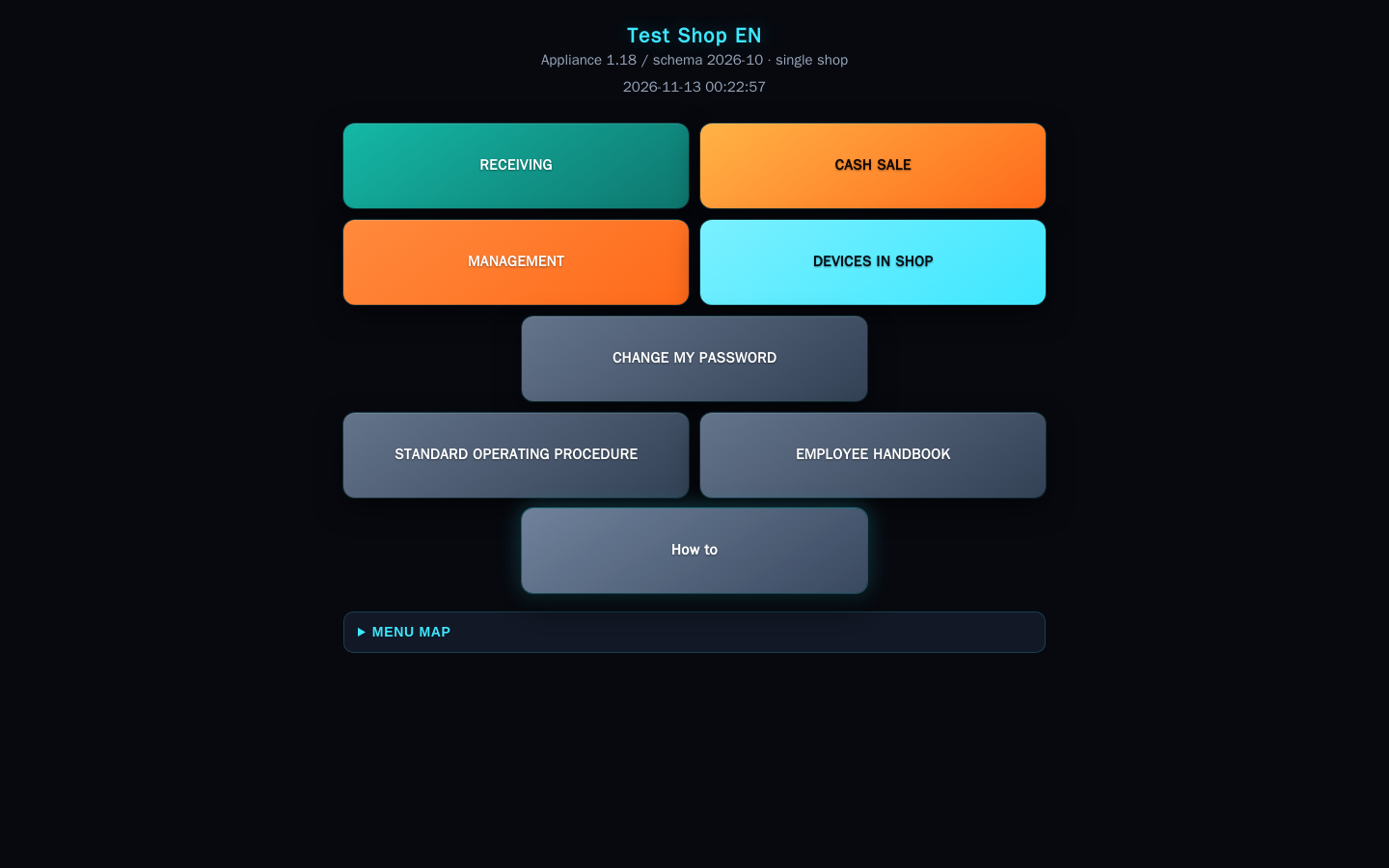 Figure 1. Home screen, with color-coded tiles for Receiving, Cash Sale, Management, and Devices in Shop. Demo shop: Test Shop EN.
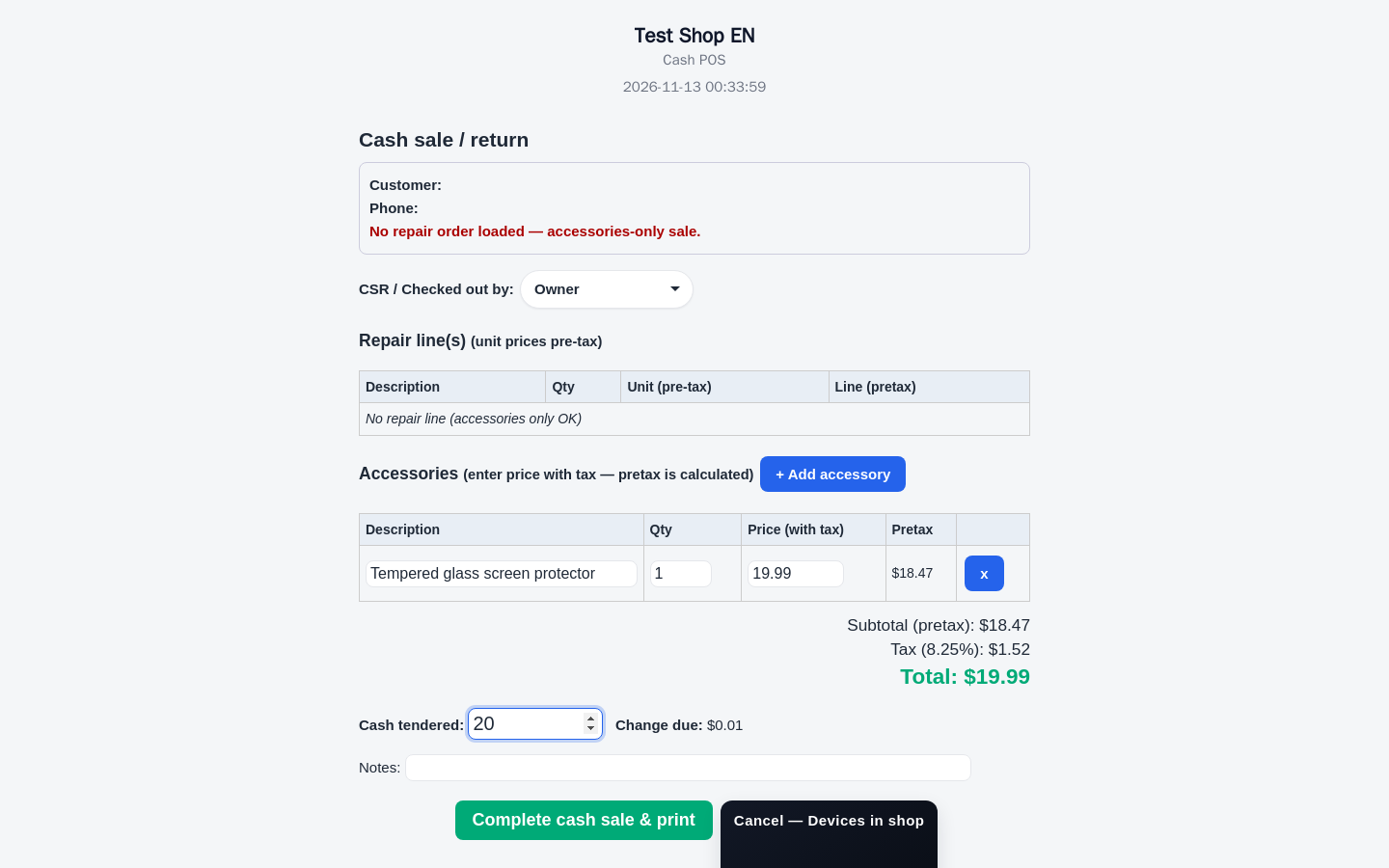 Figure 2. Cash sale screen for an accessories-only walk-in, with no repair ticket loaded.
Repair Shop Management
The daily repair path starts at receiving and intake, then moves to the ticket as the device is worked and returned.
Receiving. The receiving screen is the door into the shop’s work. Its tiles are New Customer, Repeated Customer, Warranty, Device Purchase, and Search. Returning customers can be found by phone number, and their details fill in automatically.
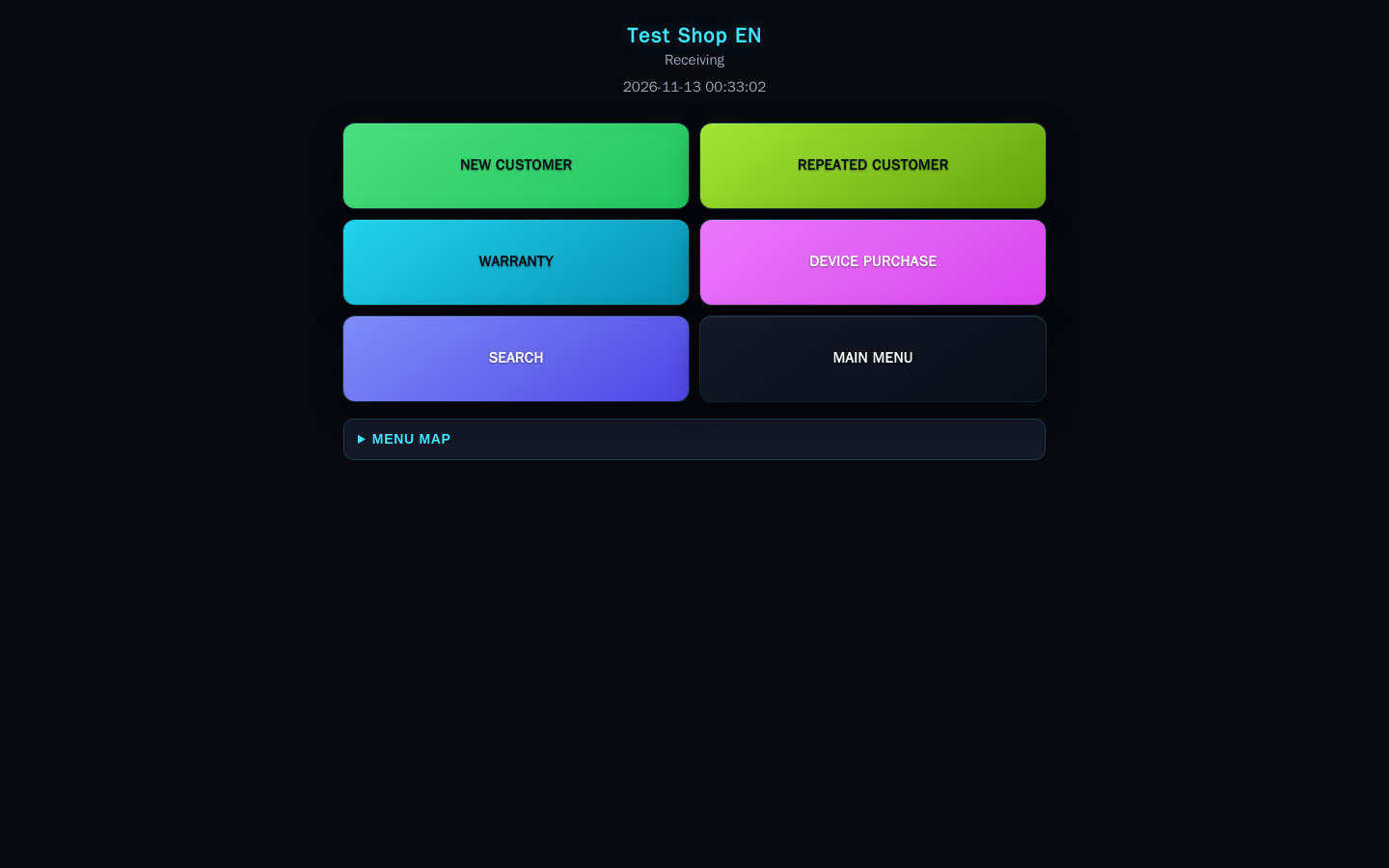
Figure 3. Receiving screen, with New Customer, Repeated Customer, Warranty, Device Purchase, and Search.
Intake. Check-in is stepped. Device and brand are chosen first. The next screen is where you pick the model (plus carrier and color when they apply), choose from the problem list, and print a receipt. The site describes problem lists as per-device intake options, with a maximum of four options, so the list stays short. Missing prices are flagged rather than guessed.
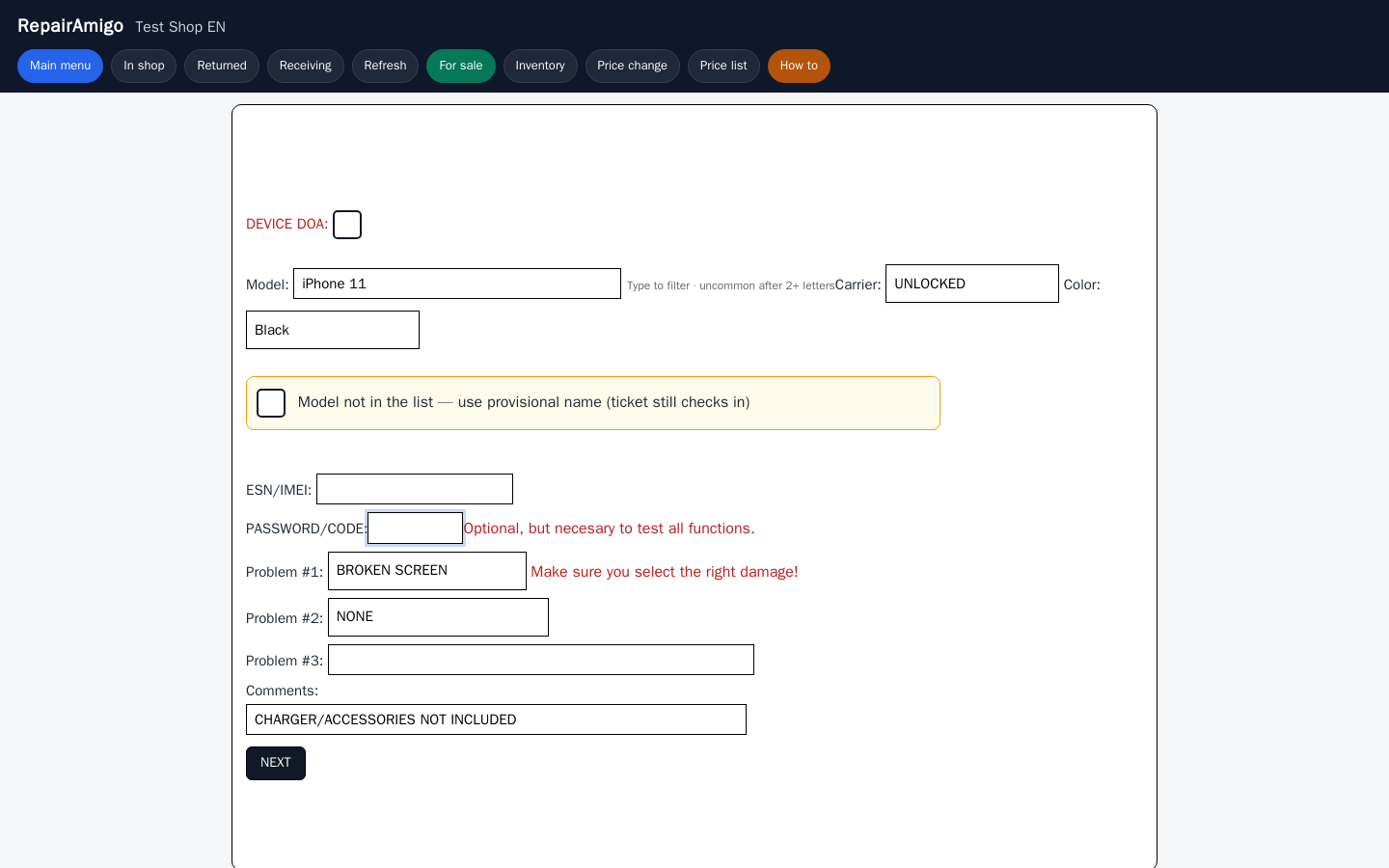
Figure 4. Intake screen, with the model picker, carrier, color, and problem list. Device and brand are chosen on the step before.
Pricing at the counter. Labor, parts, and tax are calculated when you pick the problem, so every quote is the same no matter who is at the counter. There is one clear price per screen repair, plus minimum labor and add-ons. Managers change prices in one place with the price list editor, which holds labor rates and a per-model table for screen price, parts, labor, and tax.
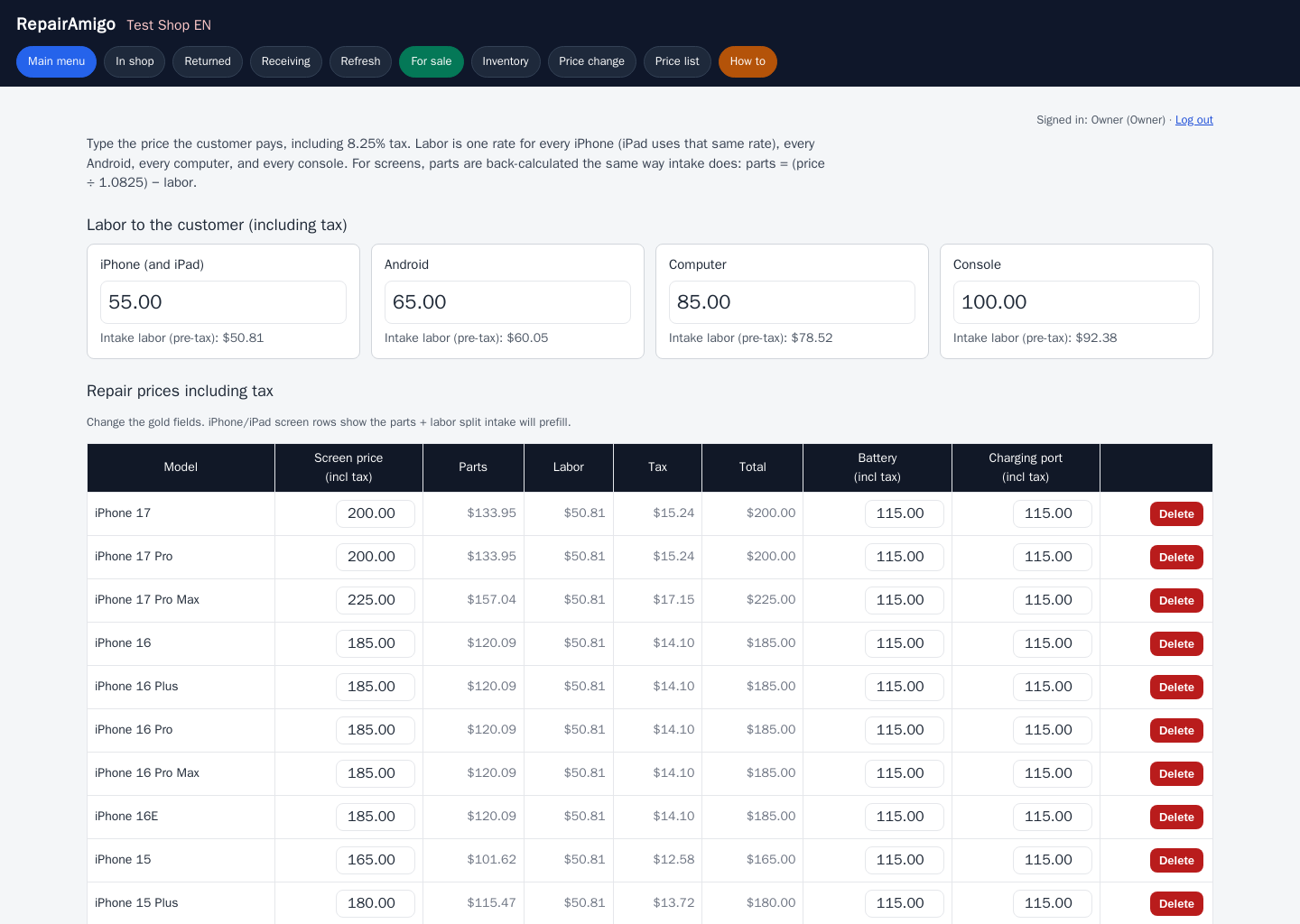
Figure 5. Price list editor, with labor rates and the per-model table for screen price, parts, labor, and tax. Cropped top section; the full list continues below.
The repair ticket. Technicians update a ticket with the repair performed, a status, and comments. Status, repair performed, assigned technician, quoted price, and comments sit on one screen. Saving the update deducts the parts and can text the customer.
Shops can use their own repair statuses, in their own order. Critical statuses are locked. Warranty tickets stand out in red.
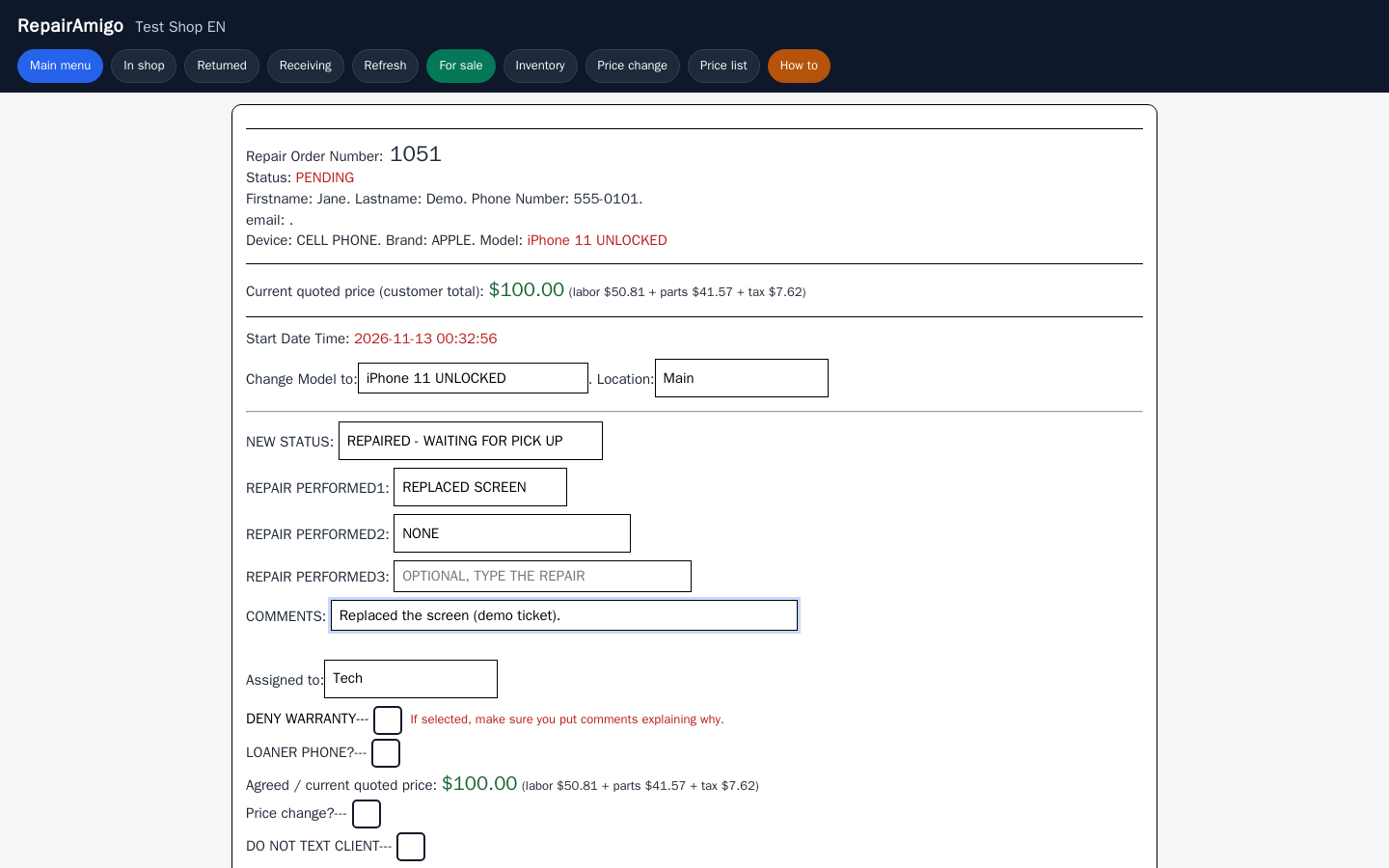
Figure 6. Ticket update screen, with status, repair performed, assigned technician, quoted price, and comments.
Warranty returns link back to the original repair and get priority, with warranty receipts and banners, repair history at a glance, and warranty problem lists.
The same rules, prices, and checks are available on a phone, so a technician can update tickets and count stock from the bench.
Inventory Management
Screens and parts are deducted automatically when a repair is saved. The point is to see low or zero stock before it costs a sale.
The published inventory picture includes:
- One screen price per model.
- Other parts such as batteries, ports, and cameras.
- Clear, filterable lists, with tabs for screens, other parts, RMA, and vendors.
- Low or zero stock is highlighted: Low stock chips at the top of the list, zero-quantity rows in red or pink, and low remaining quantities in yellow, so they can be reordered.
- Receive stock and set counts from the same list.
- The owner and manager are texted on manual count changes.
- Full history, with links to the tickets.
- Options to receive, set a count, hide a model, and review that history.
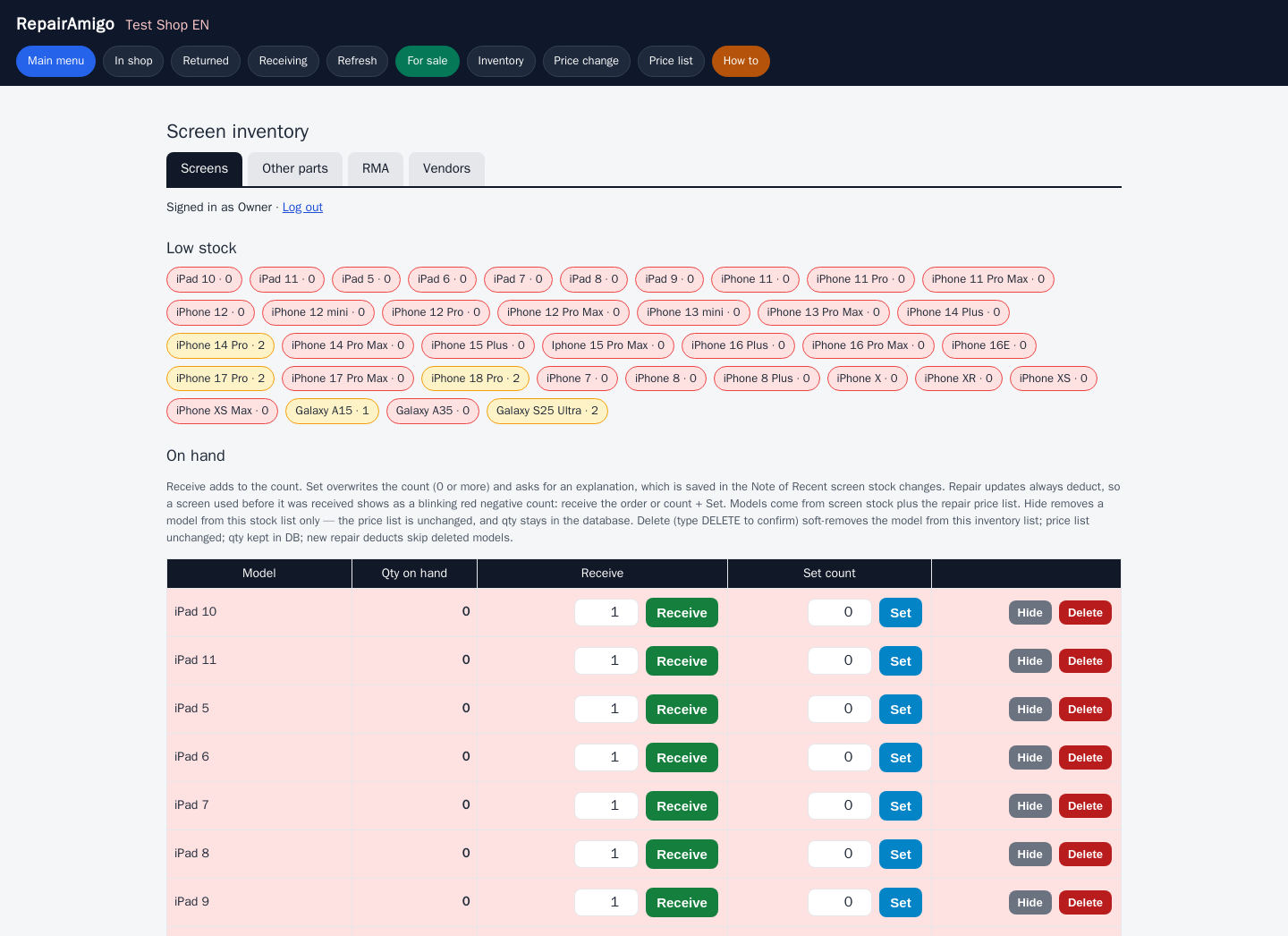
Figure 7. Screen inventory, with Low stock chips and zero-quantity rows highlighted in red or pink. Cropped top section; the full list continues below.
Customer and Repair Records
Customer and repair information is meant to live in one system on your shop computer, not across spreadsheets or sticky notes.
From intake onward, a returning customer can be found by phone number. Each ticket keeps the device, the problem, the quoted price, the repair performed, the status, the assigned technician, and comments. Warranty work links back to the original repair, so history is visible at a glance.
Because the records stay on your computer, you can back up the entire virtual machine and move it to another computer the same way you installed it. There is no cloud lock-in for that shop data.
Users and roles keep those records under control. The published roles are Owner, Manager, and Technician. Sensitive settings sit behind a manager password, and every change is logged. Staff profiles and rates can be set, manager approvals can be made on the spot, and change logs cover every list.
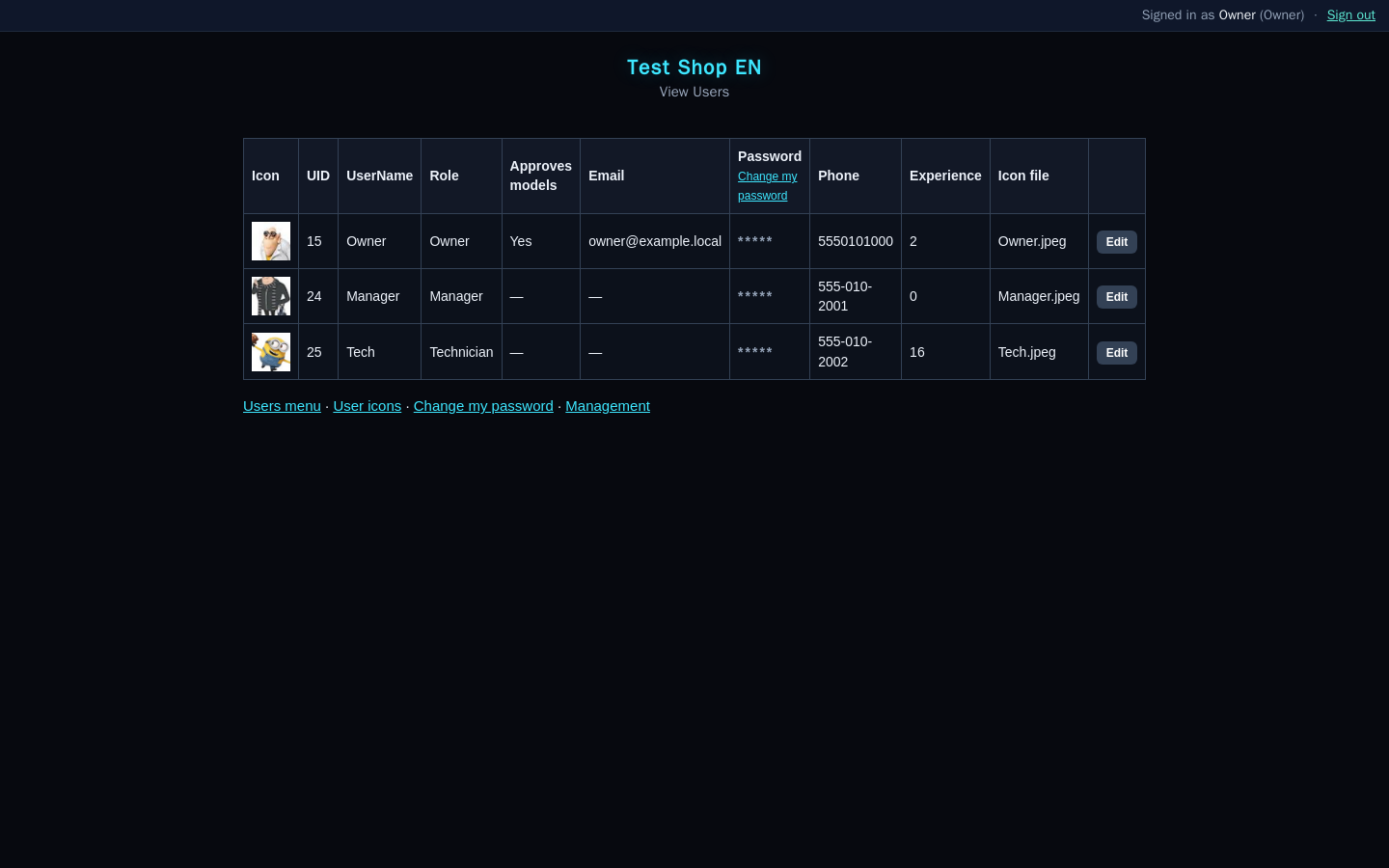
Figure 8. Users screen, showing how staff are added and how roles and icons are set. Demo staff only.
Daily Business Operations
RepairAmigo is designed so front counter and back office work already live in the same system. The public site highlights color-coded tiles for each task, a standard operating procedure built into the screens, and a layout that works on any screen and any browser on the shop network.
A typical day, as described on the site, looks like this:
- Open RepairAmigo in a browser on a counter computer, tablet, or phone.
- Receive and check in devices, then print receipts.
- Quote from the shared price list so labor, parts, and tax stay consistent.
- Update tickets as repairs move, which deducts parts and can text the customer.
- Watch inventory for low or zero stock, and receive or count parts as needed.
- Ring up accessory or walk-in cash sales when there is no repair ticket.
- Use the management screen for repairs, sales and POS, inventory, staff, reports, settings, and other shop tools.
- Close out cash: register and safe balances, deposits, withdrawals, and the daily sales summary.
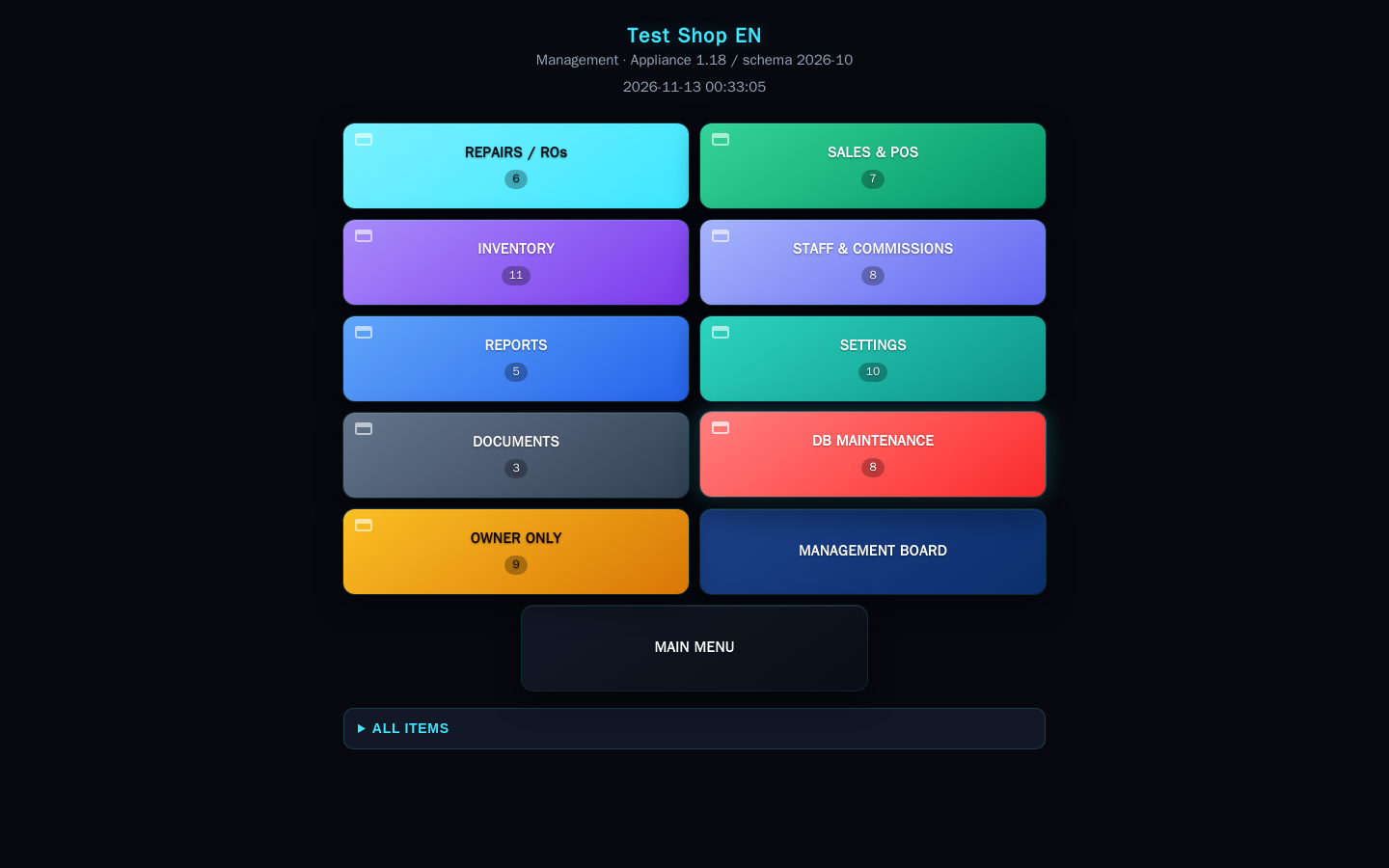
Figure 9. Management screen, with tiles for Repairs / ROs, Sales & POS, Inventory, Staff & Commissions, Reports, Settings, Documents, DB Maintenance, Owner Only, and Management Board.
Customer notifications are optional and one-way, through your own Twilio account, with settings editable in the app. Texts can go out when a device is received, needs input, or is ready for pick-up.
Remote support stays off until you click Allow.
Platform Installation and Accessibility
RepairAmigo is desktop-based repair shop management software. It runs as a virtual machine on a computer in your shop, using the free VirtualBox software. It is built as a locked-down Linux system, stays on your shop network, and does not require ports to be opened on your router. The design is meant to help keep common Windows viruses and ransomware out of the RepairAmigo system itself. Your data stays on your computer.
How to get it running:
- Download RepairAmigo from the official site, com.
- Install it in the way that matches the computer you will use as the shop server:
- Windows PCs: one-click installer (installer v1.0.1, as shown on the pricing page).
- Intel Macs: one-click installer (installer v1.0.1, macOS 10.13+). Apple Silicon is not supported.
- Linux (64-bit x86): there is no installer. Install VirtualBox yourself and import the OVA from the download page. The pricing page lists VM v1.18.
- Start the virtual machine, then open RepairAmigo in a browser on any computer, tablet, or phone on the shop’s local network.
- Add your devices, prices, and staff once.
From there, intake, quote, and receipt are described as taking under a minute, with inventory, cash, and reports running alongside the repair work.
If you later need to move the system, you back up the entire VM and run it on another computer as easily as you installed it.
Pricing and Licensing
RepairAmigo is free forever: no trial, no time limit, no subscription, and no credit card. You can download it and use tickets, intake, inventory, receipts, and warranty tracking at no charge. Nothing is charged automatically.
The optional Paid Version is a one-time payment inside the app for that installation. It currently costs US $49. It adds Stripe credit card processing, plus updates. The shop uses its own Stripe account. You can pay at any time; it is not required to keep using the free software.
How to pay, if you want card processing:
- Download and install RepairAmigo as usual.
- Sign in as Owner. Open Owners Only → Paid Version.
- Pay the amount shown in the app for that installation (currently US $49). The price that matters is the one shown in the app when you pay.
- RepairAmigo’s portal confirms the payment (not the VM itself).
- After confirmation, the Paid Version starts for that installation, and Stripe credit card processing becomes available in Owners Only.
A paid license is for one shop’s own use: that paid installation and its backup copies or clones. Copies given to anyone else are not covered. A backup or clone of a paid VM keeps its paid status. A new download or a new version starts unpaid: you import your data with the Migration Package, then enter the free one-time transfer code from your paid install. The Migration Package moves your data; the transfer code moves the paid status. Backups from earlier free versions of RepairAmigo import into the current version.
Paid installations get updates. No specific features or dates are promised.
Payments are final, and there are no refunds, so the site recommends trying the free version first.
A free installation needs an internet connection to stay in compliance with the EULA. If it stays out of compliance for 30 days in a row, it switches to Read-Only until it reconnects. In Read-Only you can still sign in, view and print tickets and receipts, search, look up customers, and export or back up your data. This is not a trial ending, and it is not a paid plan. The free version does not expire.
Current pricing is published on the RepairAmigo pricing page.
Use Cases and Applications
RepairAmigo is aimed at shops that repair cell phones, computers, and consoles. The same system is meant to cover all three, because the counter workflow is the same: check the device in, quote from a shared list, track the repair, deduct parts, take payment, and get the device back to the customer.
Mobile phone repair shops. Screen repairs have a clear price per model. Intake uses a device and brand step, then a model picker and problem list, and inventory can track screens plus parts such as batteries, ports, and cameras. Low or zero screen stock is highlighted before the next job is quoted.
Computer repair businesses. Incoming laptops and desktops can be received, quoted, and tracked on the same tickets, with assigned technicians, statuses, comments, and printed receipts. Parts deduction and stock history stay attached to the work.
Gaming console repair stores. Console jobs use the same intake-to-pick-up path, including customer text updates when a device is received, needs input, or is ready, if you choose to enable texts through your own Twilio account.
In each of those shops, the optional Paid Version is only necessary if you want to take Stripe credit card payments in RepairAmigo. The software itself stays free to run on a computer in the shop.

The Team Compare BizTech is made up of people from marketing backgrounds, digital marketing & content marketing backgrounds, each with unique experiences and nuggets of wisdom to share with you. The team is passionate about creating unique, accurate, and engaging content.