
A year or two ago, jumping on a dance trend meant one of two things. Either you learned the routine, set up your phone, and filmed take after take until your timing matched the beat. Or you sat through a long editing session in CapCut, nudging clips frame by frame and hunting for the right audio.
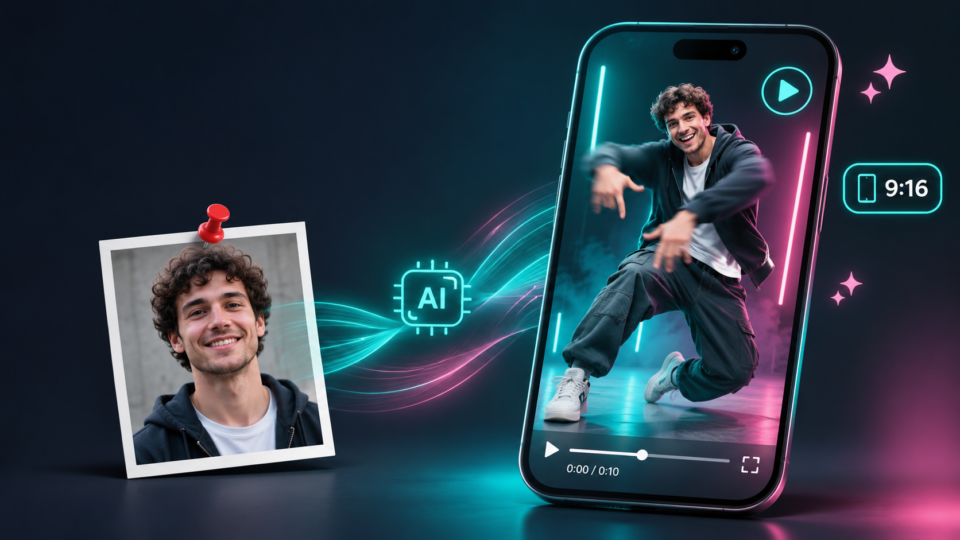
Making short dance and meme clips used to mean filming, editing, and chasing the right sound. That is no longer true. AI video tools can now take a single still photo and make the person in it dance, wave, strut or lip-sync to a trend, often in under a few minutes.
VidTrend is one of the tools built specifically for this job. It starts from still photos or a short prompt, applies motion transfer diffusion, and exports a vertical MP4 for TikTok, Instagram Reels, or YouTube Shorts. You don't need a camera, a dance partner or any editing skill.
In this guide, we walk through everything you need to know: how the technology works, how to make your first video step by step, which mode to pick, how the trending templates work, why photo quality matters so much, how to post responsibly, and what it all costs. By the end, you should be able to go from a photo on your phone to a ready-to-post clip without guesswork.
Quick answer: To make an AI dance video from a photo with VidTrend, sign in, choose a trending template or the homepage generator, and upload a clear JPEG, PNG or WebP photo (up to 10MB). Pick a duration between 5 and 30 seconds, a 9:16 aspect ratio and 720p or 1080p. Then click Generate and download a watermark-free MP4.
What Is VidTrend?
VidTrend is an AI dance and meme video generator that turns static images into short, animated clips. You give it a portrait, a selfie, a cosplay shot, a piece of character art or even a photo of your pet. It gives you back a video of that subject performing a dance or acting out a meme.
What makes it different from general-purpose AI video generators is its focus. Most text-to-video tools try to do everything, from cinematic landscapes to product shots. VidTrend is built around one use case: getting your face, or your friend's, or your cat's, into whatever is trending on TikTok this week.
There are three ways to create a video:
- Trending templates: ready-made choreographies that copy a viral clip. You just assign photos to roles.
- Text to Video: describe the dance and the scene in a prompt, and the AI builds it.
- Reference to Video: upload your photos plus a dance clip, and the AI transfers the moves to your subject.
It runs on pay-as-you-go credits rather than a monthly subscription you are forced into. That suits people who post in bursts, around a trend, rather than every day.
VidTrend at a Glance
| Feature | Details |
|---|---|
| Input | 1–10 photos (JPEG, PNG or WebP, up to 10MB each), a text prompt, or a reference video (MP4 or MOV, up to 50MB) |
| Creation modes | Trending templates, Text to Video, Reference to Video |
| Video length | 5, 10, 15, 20, 25 or 30 seconds |
| Aspect ratios | 9:16, 16:9, 1:1, 21:9 |
| Resolution | 720p or 1080p (some templates also offer 480p) |
| Output | Watermark-free MP4 |
| Built-in photo tool | AI photo enhancer (VidTrend Image AI 5.0), 1K or 2K output |
| Pricing model | One-time credit packs that never expire |
| Failed renders | Credits refunded automatically |
How Does AI Motion Transfer Work?
AI motion transfer is the technique of taking movement from one source and applying it to a person or character in a different image, while keeping that subject's appearance intact. It is the engine behind almost every "make my photo dance" app.
VidTrend follows a motion pattern (template or reference clip) while keeping the subject's look from your photos. Think of it as two inputs that get merged:
- The motion: where the arms, legs, head and body should be in every frame. This comes from a template or from a dance video you upload.
- The appearance: the face, hair, clothing and body shape of your subject. This comes from your still photo.
A diffusion model then generates each frame from scratch, drawing your subject in the pose the motion calls for. Research models such as Animate Anyone, published in late 2023, showed how this works: the model keeps a reference of the character's appearance and uses pose signals to steer each new frame, with extra machinery to keep the motion smooth over time.
Here is the practical takeaway. The model can only reproduce what it can see. If your photo is sharp, the face stays recognisable even through fast spins. If the photo is blurry, the model has to guess, and that guess shows up as melting features or a face that changes halfway through the clip.
That is why one rule matters more than any other with this kind of tool: blurry faces usually warp, so enhance first. We cover how to do that later in this guide.
How to Make an AI Dance Video from a Photo (Step by Step)
The whole process takes five steps. Most of the time goes into choosing a good photo, not into the tool itself.
Step 1: Sign In to VidTrend
Open the VidTrend homepage and sign in. You need an account to generate anything, because every render draws from your credit balance. It's worth checking whether a sign-up or seasonal offer is running before you buy credits. At the time of writing, a November special was cutting generator costs by 20%.
Step 2: Choose Your Starting Point
You have two routes:
- Use a 1-click template if you want to copy a specific viral trend. The motion, timing and framing are already set.
- Use the homepage generator if you want to describe your own dance in a text prompt, or upload a reference video with the exact moves you want.
If this is your first video, start with a template. It's the fastest way to see what the tool can do with your photos.
Step 3: Upload Your Photos
VidTrend accepts JPEG, PNG and WebP files up to 10MB each. Templates ask for anywhere from one to five photos, while the homepage generator takes up to ten.
A few habits make a noticeable difference to the result:
- Face the camera. A front-facing or slight three-quarter angle gives the model the clearest view of facial features.
- Use even light. Harsh shadows and dim rooms hide detail the model needs.
- Show the full upper body if the dance involves big arm movements.
- Skip sunglasses, hats that cover the eyes and heavy filters. They confuse the model about what the face actually looks like.
- Use one person per photo unless the template asks for a group shot.
Step 4: Set Duration, Aspect Ratio and Resolution
On the homepage generator, you choose:
- Duration: 5 to 30 seconds, in 5-second steps.
- Aspect ratio: 9:16 for TikTok, Reels and Shorts; 1:1 for square feed posts; 16:9 or 21:9 for widescreen.
- Resolution: 720p or 1080p.
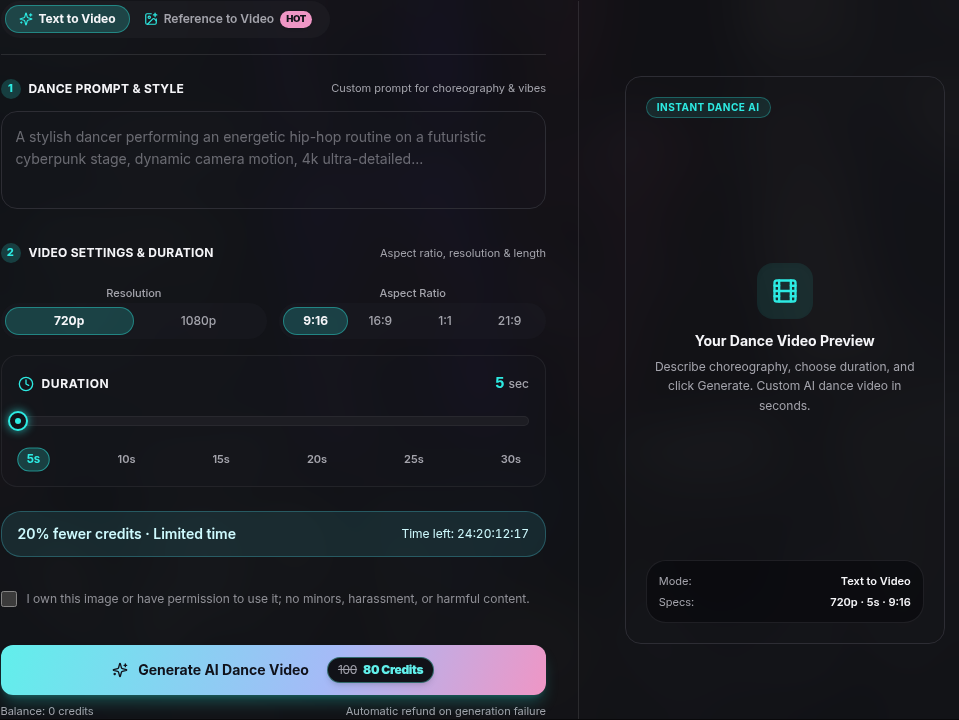
For almost every social post, 9:16 is the right call. Templates come with their duration fixed, so you only choose quality.
Step 5: Generate and Download
Click Generate. The credit cost is shown on the button before you commit, so there are no surprises. When the render finishes, the video appears in the result panel and you can download the MP4 directly.
If a render fails on VidTrend's side, the credits go straight back to your balance.
Text to Video vs Reference to Video: Which Mode Should You Use?
Use Text to Video when you can describe what you want in words. Use Reference to Video when you already have a clip whose moves you want to copy exactly. Templates sit in between: no prompting, no reference hunting, just photos.
| Mode | What you provide | Best for | Control level |
|---|---|---|---|
| Trending template | 1–5 photos assigned to set roles | Joining a viral trend the same day it peaks | Low, but fastest |
| Text to Video | A written prompt describing choreography, setting and style | Original concepts and stylised scenes | Medium |
| Reference to Video | 1–10 photos, plus an optional dance clip (MP4 or MOV, 5–30s, up to 50MB) | Copying a specific routine or swapping a dancer | High |
When Text to Video Makes Sense
Text to Video is the creative sandbox. You describe the scene and the dance, and the AI imagines it. VidTrend's own example prompt gives a good sense of the level of detail that works:
A stylish dancer performing an energetic hip-hop routine on a futuristic cyberpunk stage, dynamic camera motion, 4k ultra-detailed.
Notice what that prompt covers: who is dancing, the dance style, the energy level, the setting, the camera movement and the visual quality. Prompts that leave out the setting or the camera tend to produce flatter, less interesting clips.
When Reference to Video Makes Sense
Reference to Video is the precision tool. You upload portrait photos and, optionally, a short dance video as a motion guide. Then you tell the AI how to combine them.
The prompt can point at your uploads by name. For example, you might write "Edit @video_1. Replace the dancer in red on the left with @image_1." For group clips, you can map several people at once, such as the dancer in red to @image_1 and the one in the black cap to @image_2.
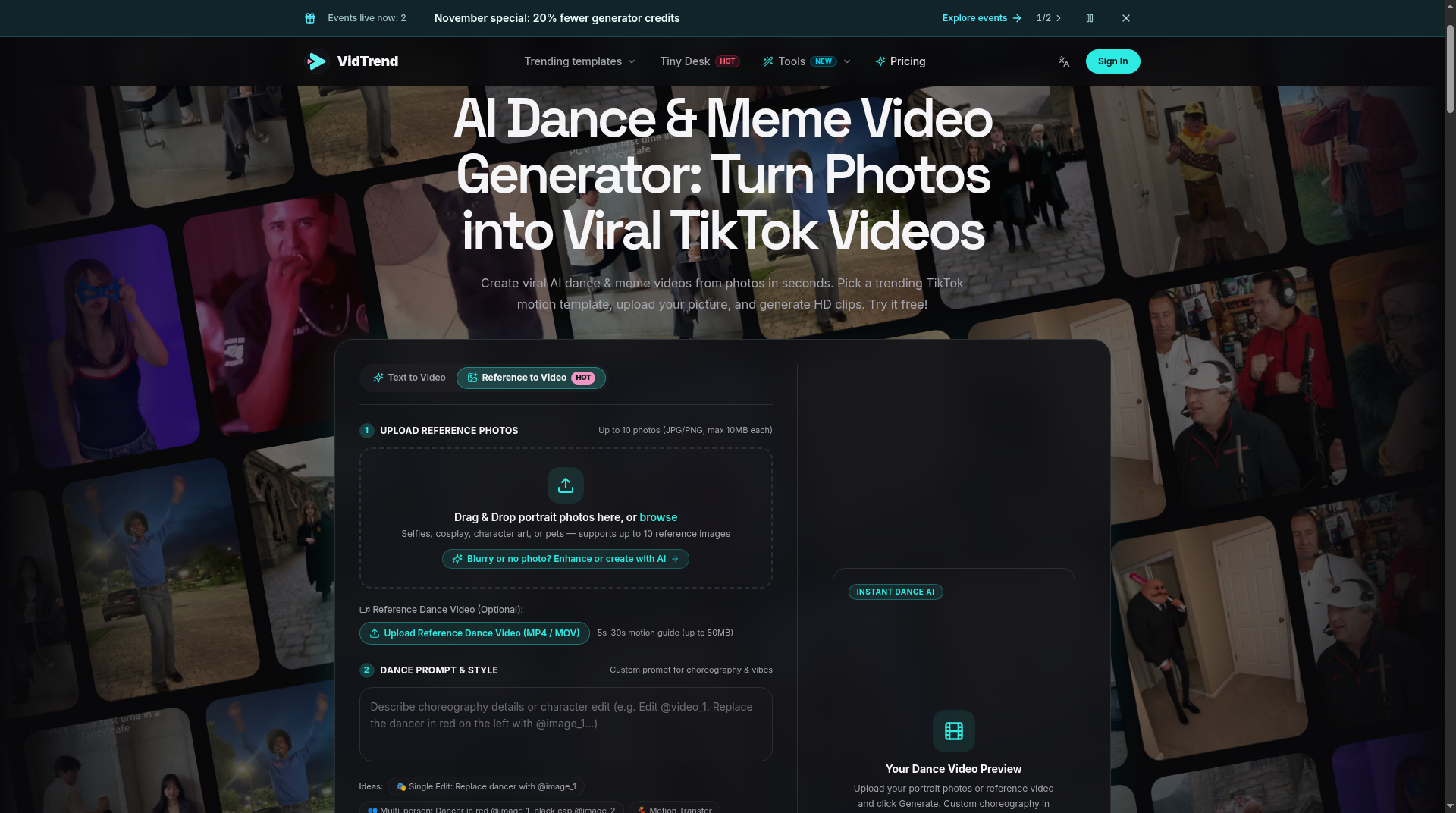
This mode is ideal when the trend lives in a specific video and you want your version to match it beat for beat.
How to Use VidTrend’s One-Click Trending Templates
Templates are where VidTrend earns its name. Each one is a pre-built motion choreography copied from a viral clip, so the timing, framing and moves are already right. Your only job is to supply the faces.
The template library lists everything you need before you spend a credit: how many photos are required, the clip length, the available resolutions, whether audio is included and the credit cost. Templates also rotate quickly as trends come and go, which is the point. When a meme is peaking, there's often a template for it.
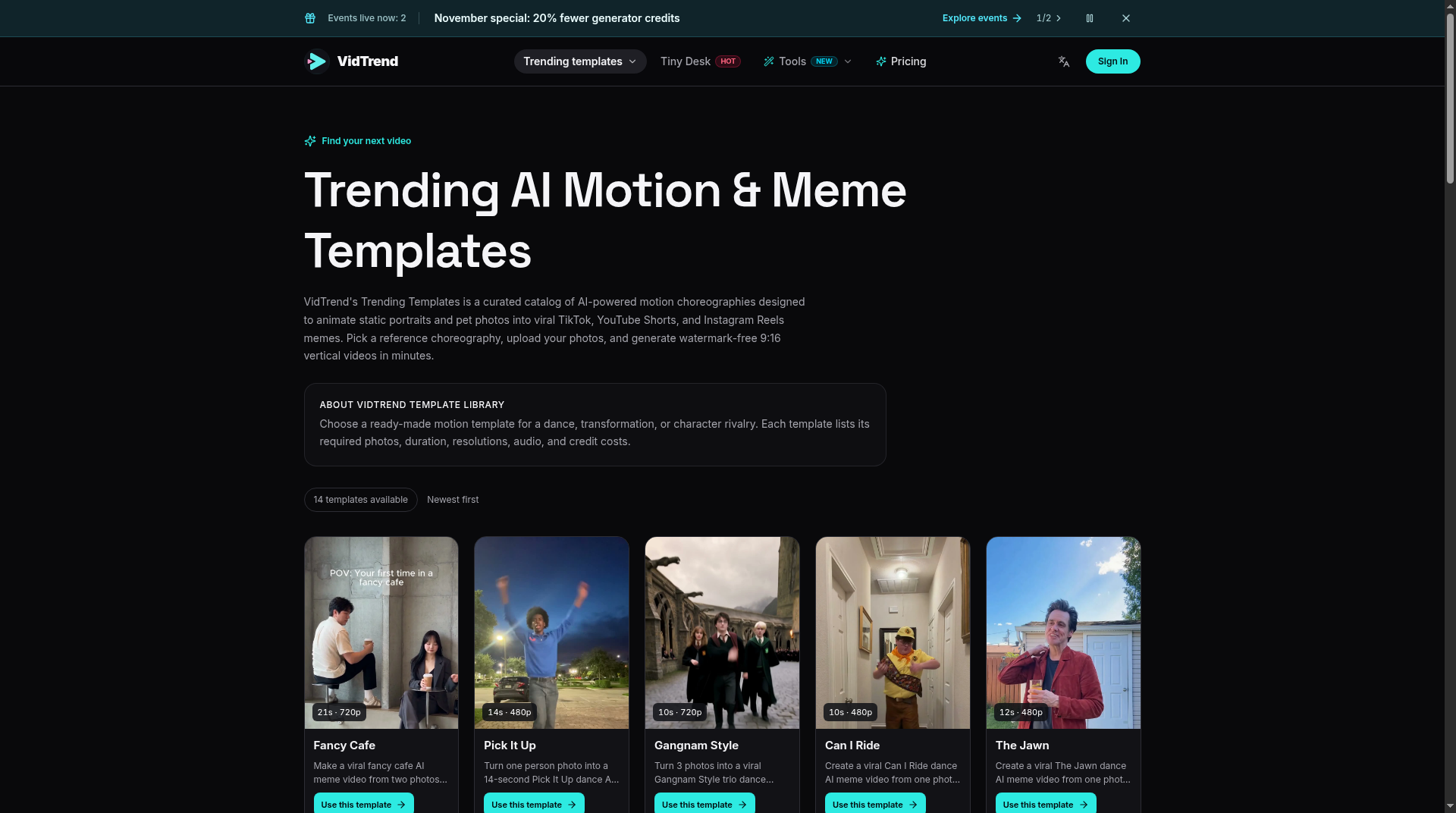
The workflow is the same for every template:
- Browse the trending templates page and open a trend.
- Assign a photo to each role the template asks for.
- Choose your quality level and check the credit cost.
- Generate, then download.
Tiny Desk AI Dance
The Tiny Desk template is one of the more ambitious ones in the catalogue. It turns five photos into an ensemble Tiny Desk-style parody synced to Charlie Wilson's "Outstanding", the clip behind the viral "Outstanding" meme.
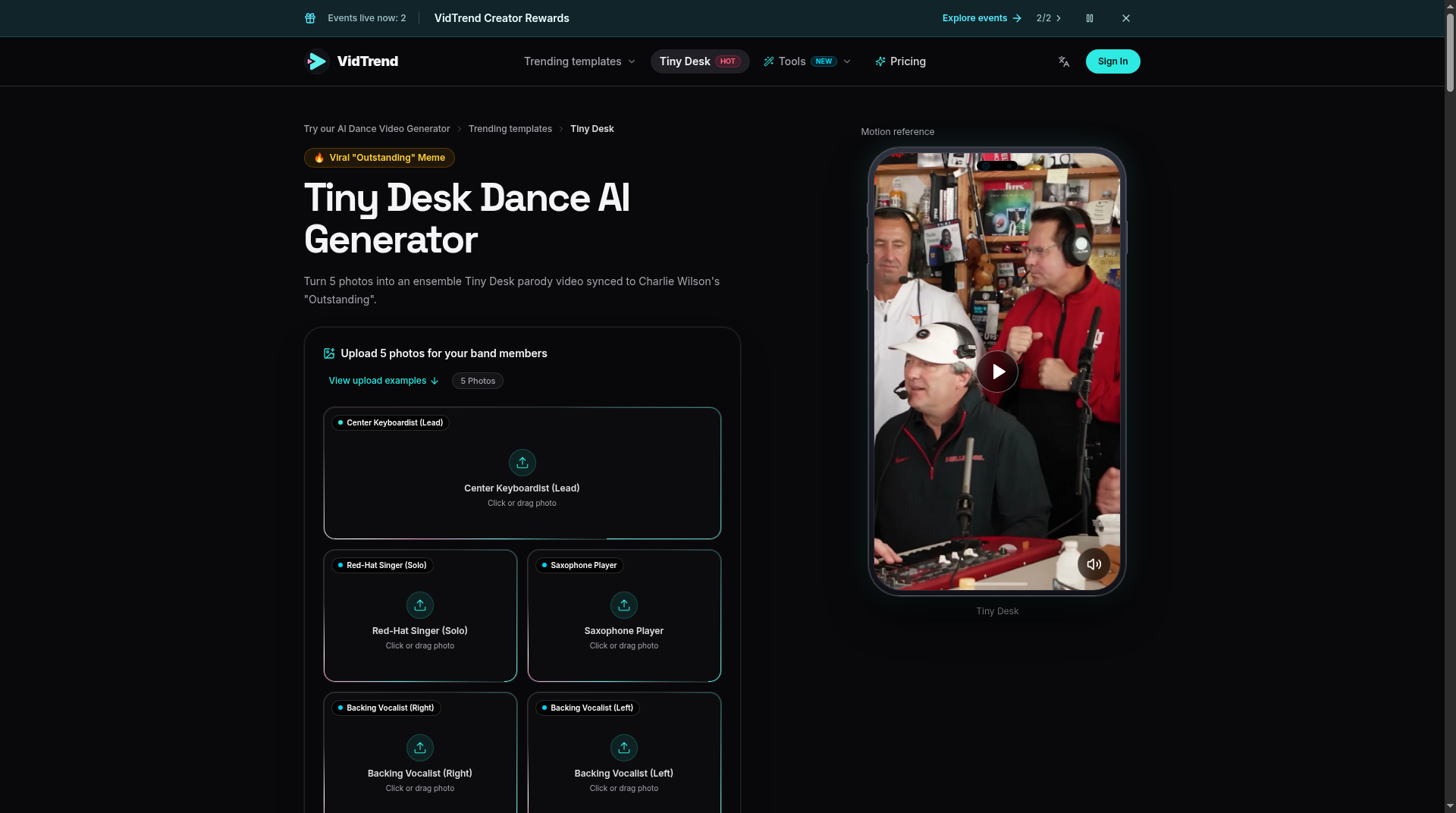
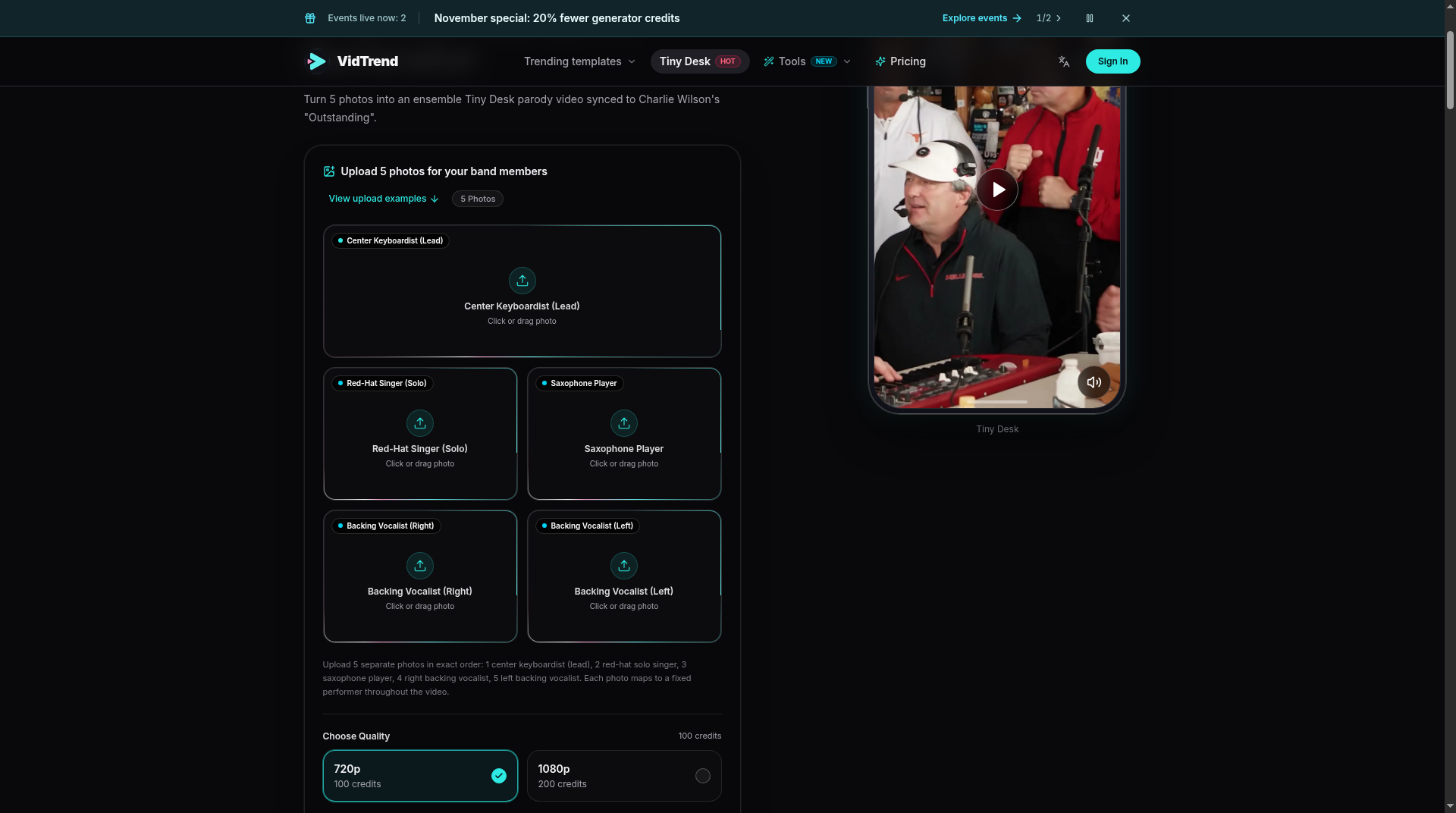
Each photo is locked to one performer for the entire clip, so the order you upload them in matters:
- Center keyboardist (the lead)
- Red-hat solo singer
- Saxophone player
- Right backing vocalist
- Left backing vocalist
The result is a 15-second vertical (9:16) MP4. At the time of writing, it costs 100 credits at 720p or 200 credits at 1080p.
This template works especially well for teams, friend groups and office parties. Five familiar faces playing an over-the-top band is exactly the kind of clip people share in group chats. Just make sure everyone in the photos is happy to be in it.
Gangnam Style Dance AI
Gangnam Style Dance AI turns three photos into a 10-second trio dance based on the famous horse-riding routine. It's a good pick when you want a group clip without coordinating five people.
Other Templates Worth Knowing
The catalogue covers far more than dances. Alongside the two above, you'll find options such as:
- Fancy Cafe: a two-photo "POV: your first time in a fancy cafe" meme.
- Pick It Up: a one-photo, 14-second dance.
- Can I Ride and The Jawn: single-photo dance trends built for quick reactions.
Because templates change as trends shift, it pays to check the library every few days if you post trend content regularly.
Custom Choreography and Creative Controls
When no template fits your idea, the homepage generator hands you the controls. These are the settings you can adjust:
| Setting | Options | Tip |
|---|---|---|
| Duration | 5, 10, 15, 20, 25 or 30 seconds | Shorter clips loop better on TikTok; 10–15 seconds is a safe default |
| Aspect ratio | 9:16, 16:9, 1:1, 21:9 | 9:16 for vertical feeds, 1:1 for square posts |
| Resolution | 720p or 1080p | Use 720p for drafts, 1080p for the final cut |
| Motion source | Text prompt, reference video, or both | Combine both when you want a set routine with a custom setting |
Writing Prompts That Work
A good dance prompt reads like a short brief to a director. Cover these five things and you'll rarely be disappointed:
- Subject: who is dancing (a "stylish dancer", "the person in @image_1").
- Dance style: hip-hop, K-pop, salsa, a slow two-step.
- Energy: energetic, playful, smooth, dramatic.
- Setting: a neon stage, a rooftop at sunset, an office.
- Camera: static, slow push-in, dynamic tracking.
Keep it to one or two sentences. Long, crowded prompts give the model too many competing instructions.
A Cost-Saving Workflow
Because 1080p costs twice as much as 720p, a sensible habit is to draft first and polish second. Generate a short 720p version to check that the motion and likeness look right. Once you're happy, run the final version at 1080p.
Failed GPU jobs refund credits automatically, so you won't lose credits to a render that crashes. You will still pay for renders that complete but don't match what you wanted, which is why drafting at lower resolution makes sense.
Why Enhance Your Photo Before Making an AI Video?
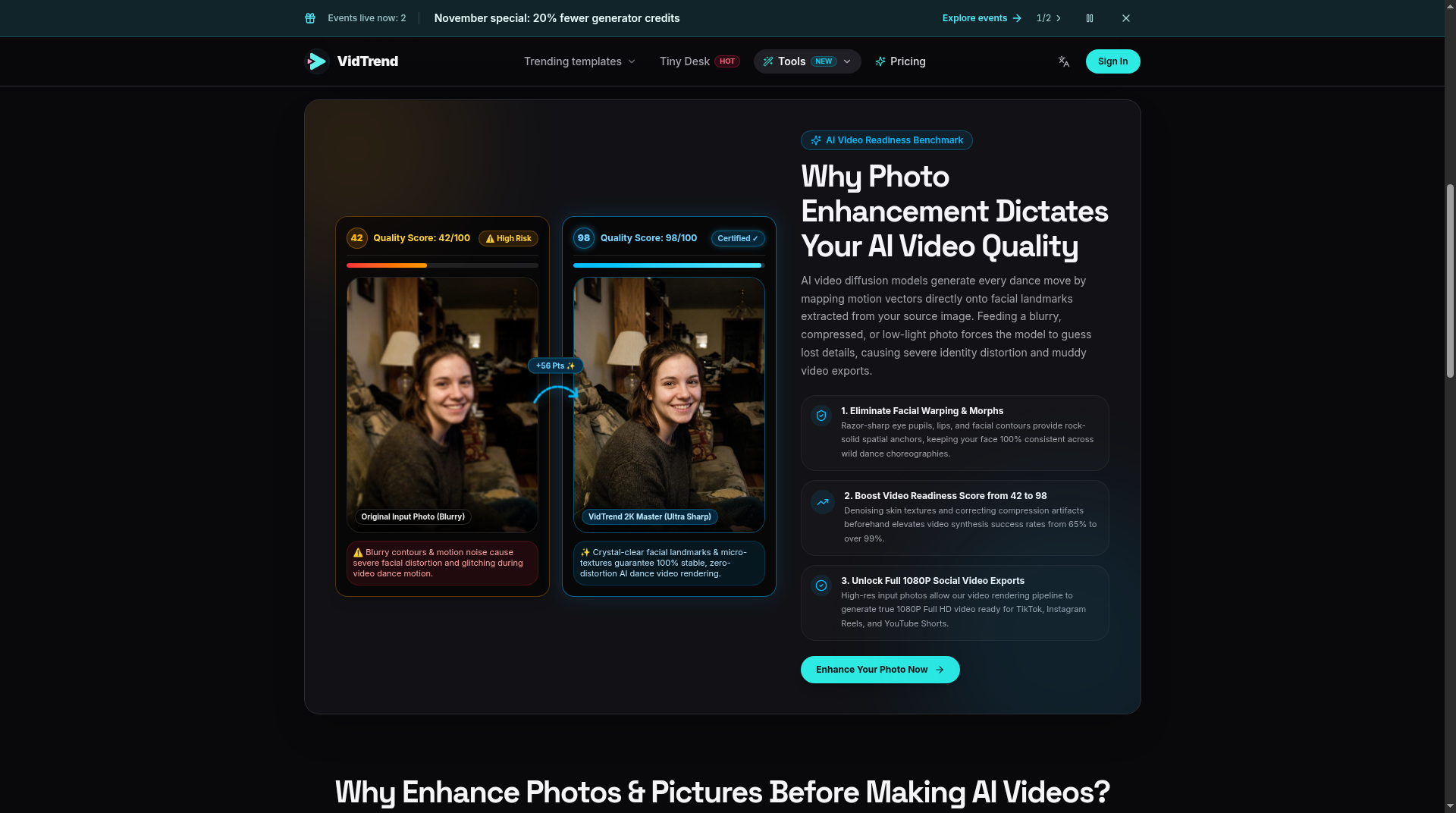
Enhancing your photo first gives the AI sharper facial detail to work from, and that detail is what keeps the face stable while the body moves. It's the single cheapest upgrade you can make to your results.
Most photos we actually have of friends and family are not studio portraits. They're old phone shots, screenshots from group chats, or pictures that have been compressed three times over by messaging apps. They look fine on a small screen. To a video model trying to rebuild that face across hundreds of frames, they're full of gaps.
When the model can't see clear eyes, lips and contours, it fills in the blanks. That's where the common problems come from:
- Faces that drift and stop looking like the person midway through the clip
- Smeared or "melting" features during fast moves
- Muddy, low-detail exports even at 1080p
How to Use VidTrend’s AI Photo Enhancer
VidTrend includes its own enhancer, powered by VidTrend Image AI 5.0, so you don't need a separate app. If your photo is blurry, low-res or dark, enhance first:
- Upload your picture (JPEG, PNG or WebP, up to 10MB). It handles human portraits, cosplay, anime art and pet photos.
- Choose the Picture to HD (Unblur) mode to restore/upscale the image.
- Pick your output quality and aspect ratio (9:16 is the default for TikTok and Reels).
- Optionally, use Fine-tune with Prompt to guide the fix.
- Once you're happy, choose Make AI Dance Video to send the enhanced still straight into the video generator.
| Enhancer output | Best for | Credits |
|---|---|---|
| 1K Standard | Most social videos, quick fixes | 1 |
| 2K Ultra HD | Very blurry sources, 1080p video exports | 2 |
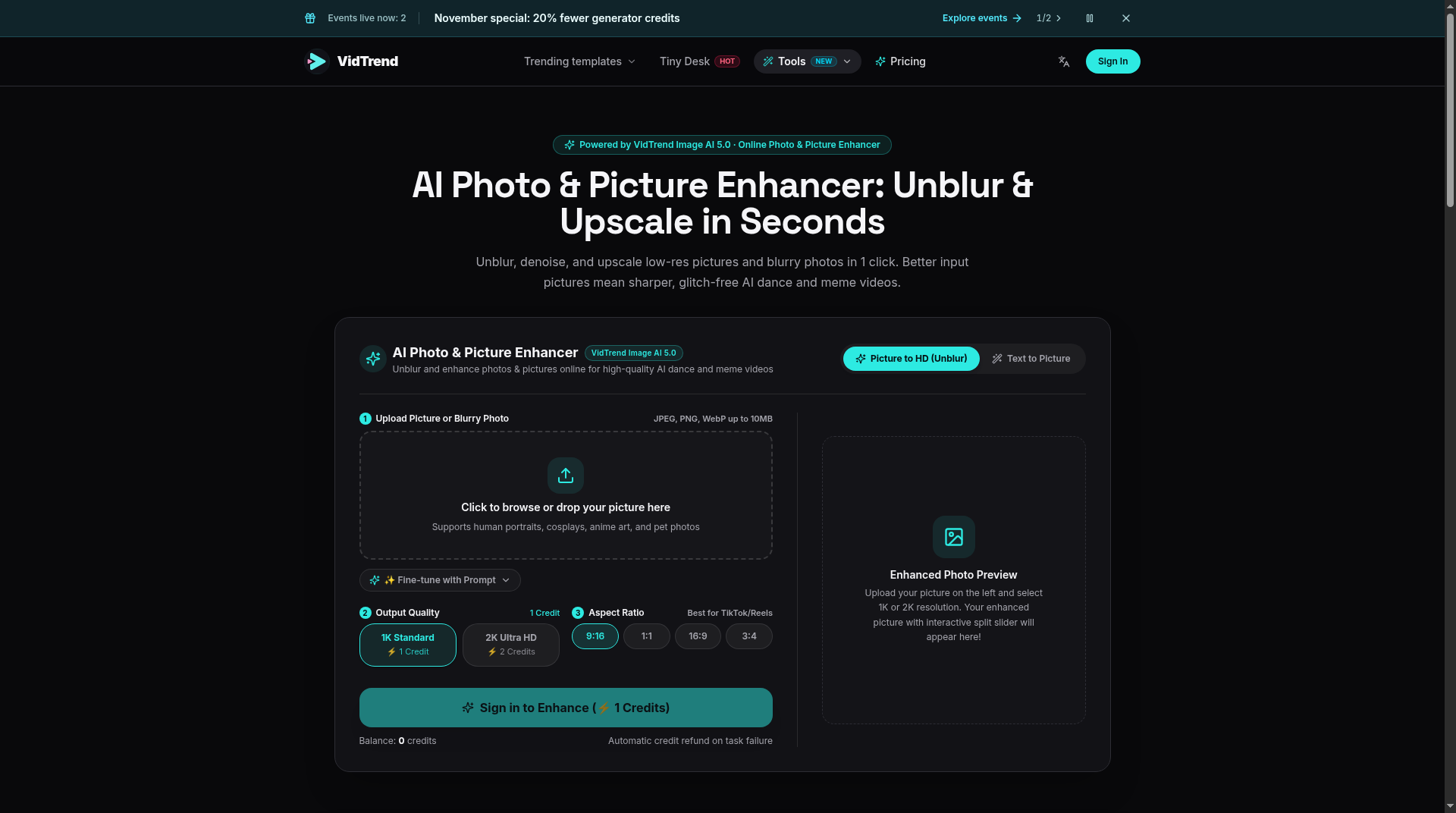
At one or two credits, enhancement costs a tiny fraction of a video render. It's cheap insurance against wasting 100 or 200 credits on a clip where the face falls apart.
No Usable Photo? Create One
The enhancer also has a Text to Picture mode for text-to-image generation. It's handy when you want an original character, a mascot or a stylised avatar to dance, rather than a real person. Generate the image, then send it to the video generator in the same way.
Exporting and Posting to TikTok, Reels and Shorts
VidTrend exports are built for vertical feeds out of the box. A few extra minutes at the posting stage can still make the difference between a clip that gets buried and one that rides the trend.
Watermark-Free MP4 Downloads
Exports are watermark-free MP4 (H.264), commonly 720p or 1080p vertical. Download from the result panel after generation. H.264 is the most widely supported video format around, so the file uploads cleanly to TikTok, Instagram, YouTube and most editing apps without conversion.
No watermark means your clip looks native to the platform, not like an ad for the tool that made it. That matters for reach, and it matters if you're posting on behalf of a brand.
Adding the Trending Sound
Some templates ship silent on purpose, while others, such as Tiny Desk, come with the track already synced. If your clip is silent, attach the official trending sound on TikTok/Reels/CapCut rather than baking audio into the file yourself.
There's a good reason for this. When you use the platform's own sound, your video gets listed on that sound's page alongside everyone else's version of the trend. That page is a discovery channel in its own right. A clip with the audio pasted in as part of the video misses out on it.
Labelling AI Content the Right Way
Label AI/parody honestly. This isn't just good manners; it's increasingly a platform rule.
- TikTok requires creators to label AI-generated content that contains realistic images, audio or video, and offers a built-in "AI-generated" label toggle when you post.
- YouTube asks creators to disclose realistic altered or synthetic content during upload through the "altered content" setting.
- Instagram and other Meta apps also apply AI labels to some content.
A lighthearted dance meme rarely fools anyone, but labelling keeps you on the right side of platform policies and builds trust with your audience. Adding "AI" or "parody" to the caption costs nothing.
Use Faces and Brands You Have Rights To
Only use faces and brands you have rights to. In practice, that means:
- Get permission before animating a friend, colleague or family member.
- Don't animate celebrities or public figures in ways that could pass as real.
- Avoid putting other companies' logos or products front and centre without permission.
- Never upload photos of children. VidTrend's own upload checkbox excludes minors, harassment and harmful content.
Who Should Use VidTrend?
VidTrend is built for anyone who needs short, playful video quickly and doesn't want to film it. Four groups get the most out of it.
Creators Chasing Same-Day Trends
Trends on TikTok move fast. By the time you've learned a routine and filmed it, the moment can be gone. Templates let creators post their take while a trend is still climbing, which is when the algorithm rewards it most.
Marketers Making Light Promo Content
Not every brand post needs a production budget. A dancing mascot, a team photo turned into a Tiny Desk band, or a holiday-themed meme can carry a light promotional message without a shoot. It works best for playful brands and internal culture posts rather than serious product launches.
Music and Fandom Accounts
Multi-character templates such as Gangnam Style and Tiny Desk suit fan pages and music accounts running challenges. Character art and cosplay photos are both supported, so fandoms can animate their favourite original characters too.
Video Editors Needing Quick Reference Clips
For editors for fast reference clips, VidTrend is a fast way to mock up an idea. A rough motion test can help pitch a concept or storyboard a sequence before anyone films a frame.
Who Should Skip It
VidTrend is a meme and trend tool, not a replacement for professional video production. If you need long-form content, precise brand control or real footage of your product, look elsewhere. And skip kids' photos and likenesses you cannot use, whatever the project.
VidTrend Pricing: How Do Credits Work?
VidTrend uses Pay-as-you-go credits instead of a forced subscription. You buy a pack once, and the credits sit in your account until you use them. One-time credits never expire.
What Things Cost in Credits
| Output | Credits |
|---|---|
| Video at 480p (where offered) | 50 |
| Video at 720p | 100 |
| Video at 1080p | 200 |
| Enhanced photo, 1K | 1 |
| Enhanced photo, 2K | 2 |
The exact cost is always shown on the Generate button before you commit. Seasonal promotions can lower it; the November special, for example, cut generator costs by 20%.
Credit Packs
| Pack | Price (USD, at time of writing) | Roughly gets you |
|---|---|---|
| 100 credits | $9.99 | 1 video at 720p, or 2 at 480p |
| 200 credits | $19.99 | 2 videos at 720p, or 1 at 1080p |
| 400 credits | $34.99 | 4 videos at 720p, or 2 at 1080p |
| 800 credits | $59.99 | Studio and creator volume |
| 1,600 credits | $99.99 | Studio and creator volume |
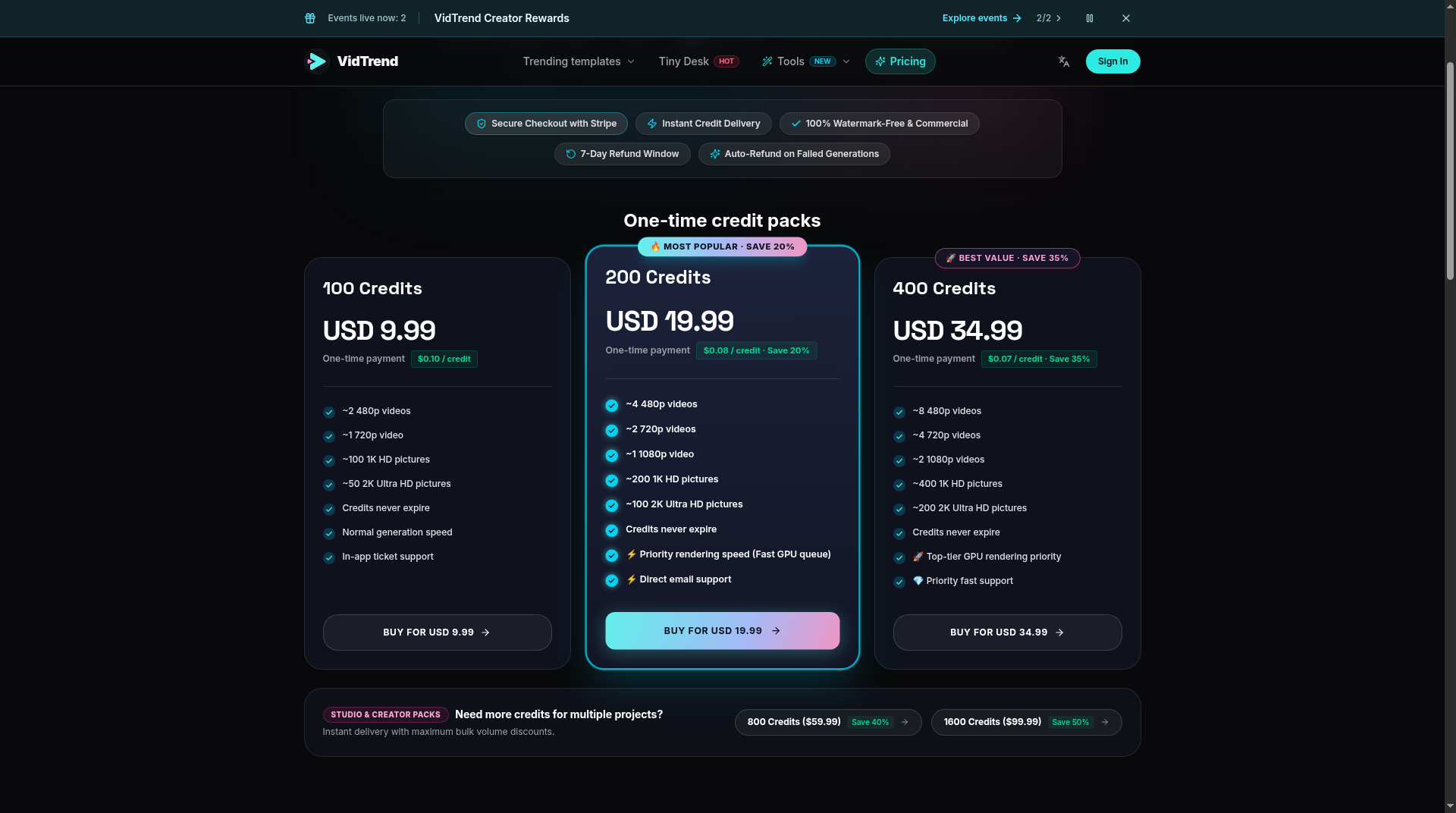
Larger packs bring the price per credit down, so regular creators save by buying in bulk. Prices and promotions change often, so check VidTrend's live pricing page before you buy.
Refunds and Guarantees
- Failed generations are refunded to your credit balance automatically.
- Unused packs can be refunded within seven days of purchase, as long as none of the credits have been spent.
- Checkout runs through Stripe.
If you're unsure where to start, the 200-credit pack is the most practical. It covers two 720p videos, or one 480p draft plus one 720p final with credits left over to enhance your photos.
Frequently Asked Questions
Can I make an AI dance video from a single photo?
Yes. Many VidTrend templates need just one photo, and the homepage generator accepts anywhere from one to ten. A clear, front-facing portrait gives the most stable result.
What photo formats does VidTrend accept?
VidTrend accepts JPEG, PNG and WebP images up to 10MB each. Reference dance videos can be MP4 or MOV files between 5 and 30 seconds long, up to 50MB.
How long can a VidTrend video be?
Custom videos run from 5 to 30 seconds, in 5-second steps. Template lengths are fixed by the trend: Tiny Desk runs 15 seconds and Gangnam Style runs 10.
Are VidTrend videos watermark-free?
Yes. Every export is a watermark-free MP4, usually 720p or 1080p in vertical format.
Why does my AI dance video distort the face?
Face distortion almost always comes from a weak source photo. Blurry, compressed or low-light images leave the model guessing at facial details, so features warp during movement. Running the photo through VidTrend's AI photo enhancer first usually fixes it.
How many credits does one VidTrend video cost?
A video costs about 50 credits at 480p, 100 at 720p and 200 at 1080p. Photo enhancement costs 1 credit at 1K or 2 credits at 2K. Failed generations are refunded automatically.
Do VidTrend credits expire?
No. Credits from one-time packs never expire, so you can buy once and use them across many trends.
Does VidTrend include music in the videos?
It depends on the template. Some, like Tiny Desk, come with the track already synced; others are silent on purpose. For silent clips, add the official trending sound inside TikTok, Instagram or CapCut.
Do I need to label AI dance videos on TikTok or YouTube?
For realistic content, yes. TikTok requires labels on realistic AI-generated content, and YouTube asks creators to disclose realistic altered or synthetic media at upload. Labelling every AI or parody clip is the simplest way to stay compliant.
Can I use photos of other people or children?
Use other people's photos only with their permission. Children's photos should never be used; VidTrend's upload terms rule out minors, harassment and harmful content.
Final Thoughts
AI dance video tools have turned trend content from a production job into something closer to a quick edit. VidTrend leans fully into that idea. Templates get you into a trend while it's still hot, the custom generator gives you control when you want it, and the built-in enhancer quietly fixes the problem behind most bad AI videos: a weak source photo.
If you're trying it for the first time, keep it simple:
- Pick a sharp, front-facing photo, and enhance it if it's even slightly soft.
- Start with a one-photo template to see how your face holds up in motion.
- Draft at 720p, then render the keeper at 1080p.
- Add the official trending sound on the platform, label the clip as AI, and post.
Used this way, a single photo and a few minutes are enough to put you, your team or your pet in the middle of whatever the internet is dancing to this week. Just keep it honest, keep it consensual, and keep the kids' photos out of it.
Prices, templates and promotions mentioned in this guide reflect VidTrend at the time of writing and may change.

I’m Jamesmith, an independent niche developer passionate about building practical AI-powered creative tools. I explore and test new ways to make content creation faster and easier, helping creators turn ideas into engaging videos without complicated production setups. I write short, hands-on guides covering AI video tools, creative workflows, and techniques for producing TikTok- and Instagram Reels-ready clips with minimal effort.